 EDIT
EDIT Guide 3 of 9
Create and connect your Supabase account.
Two short parts with screenshots: create your free Supabase account and organisation, then connect it to your store. 3Edit creates the database and all its tables for you.
About 10 minutesLast updated
On this page
Create your free Supabase account
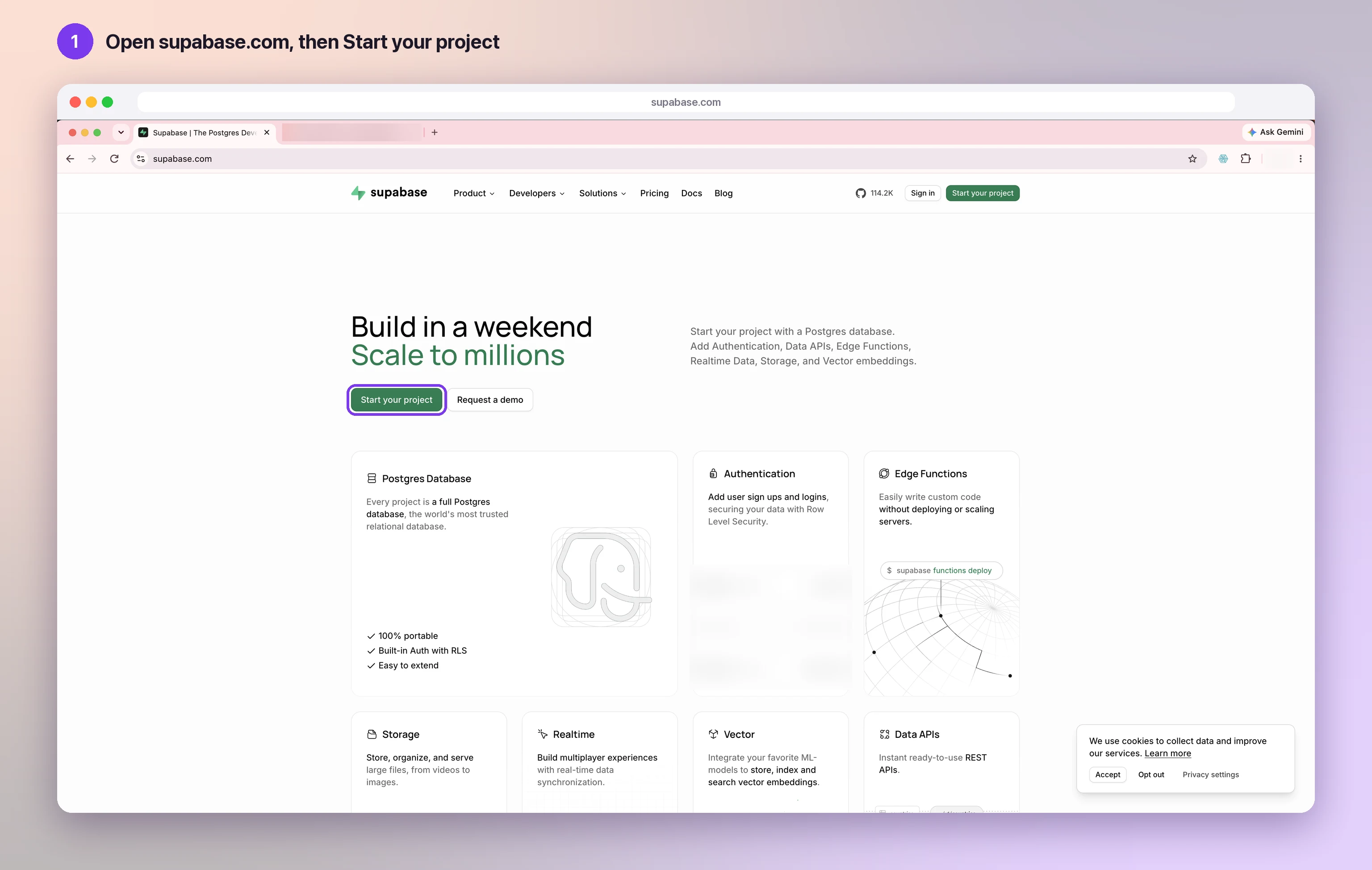
Open Supabase
Go to supabase.com and press Start your project. A Supabase account is free, and it is where your store’s database will live: its products, orders and customer accounts, in an account that belongs to you.
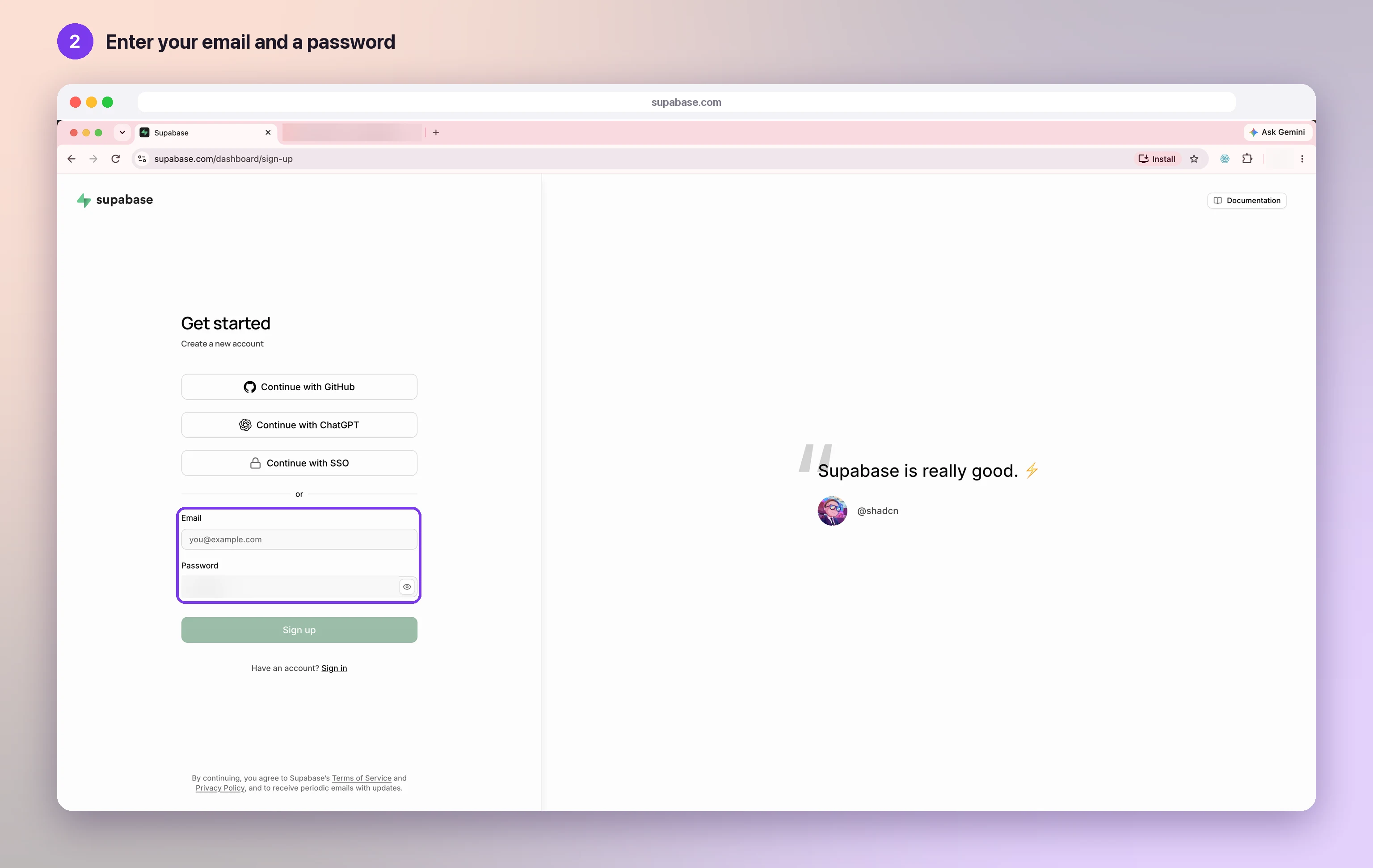
Enter your email and a password
On the sign-up page, type the email address you want to use and choose a password. You can also continue with GitHub if you prefer.
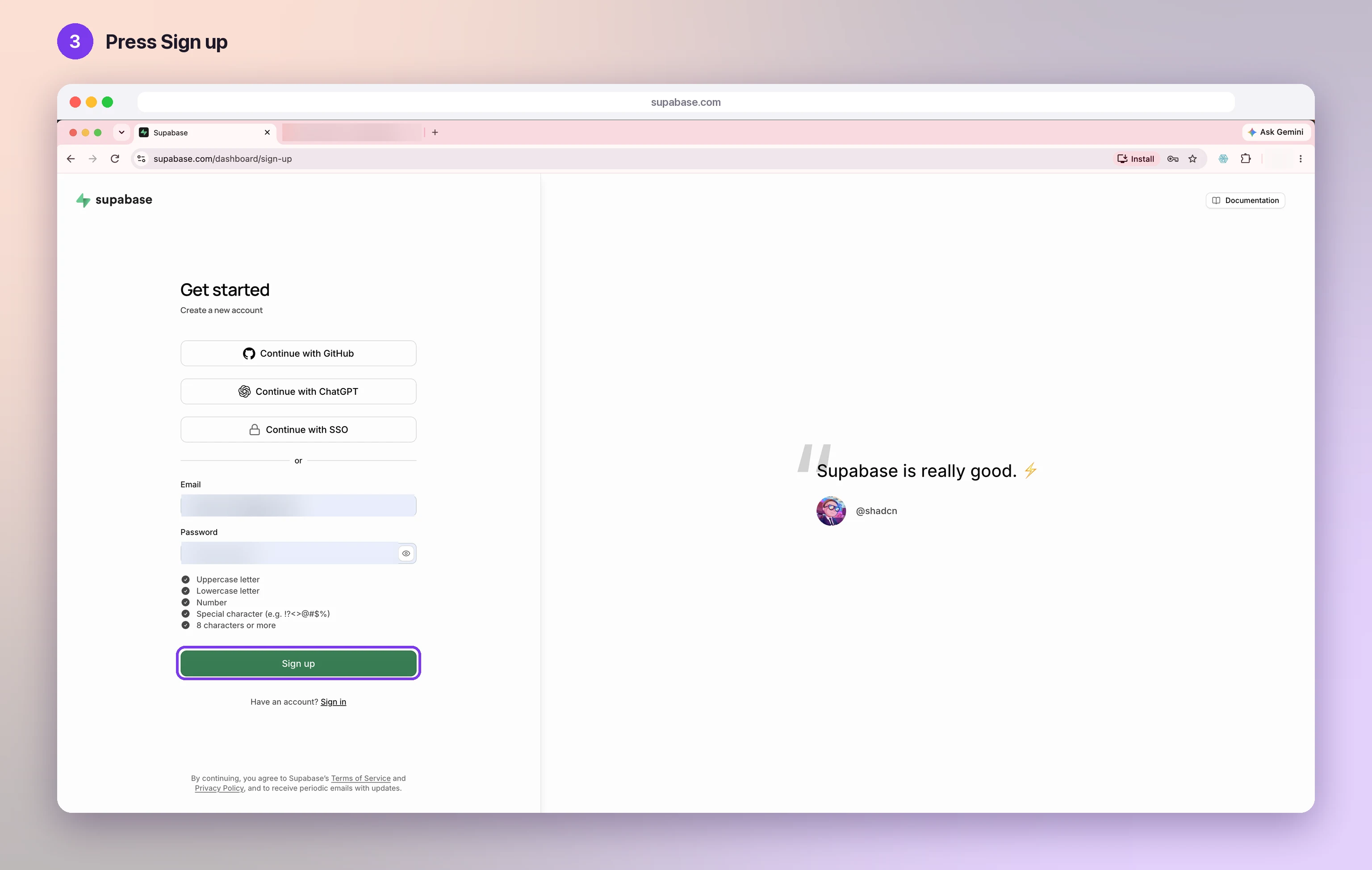
Press Sign up
When every password tick is green, press Sign up.
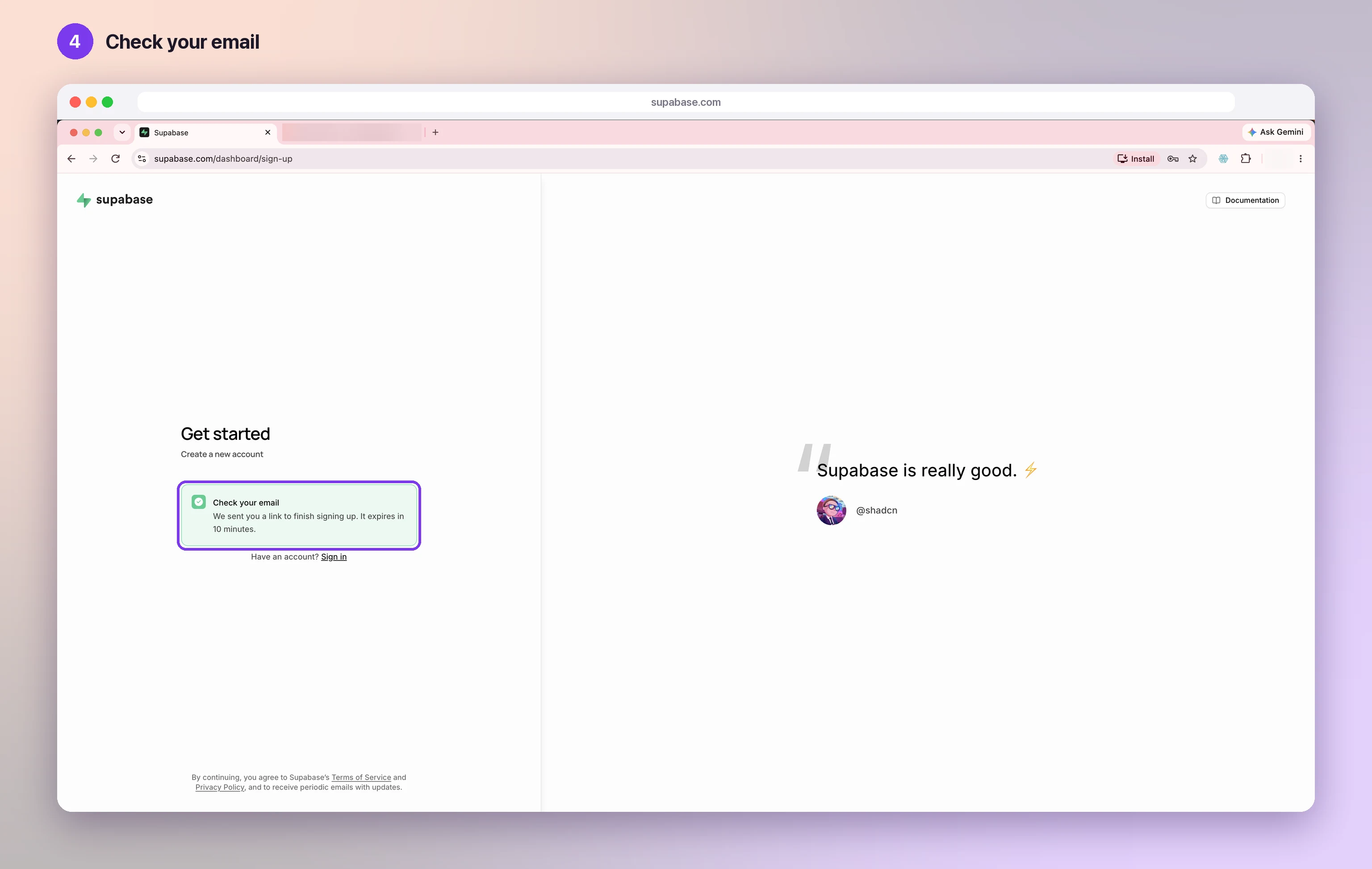
Check your email
Supabase sends you a link to finish signing up. Open your inbox: the link works for 10 minutes.
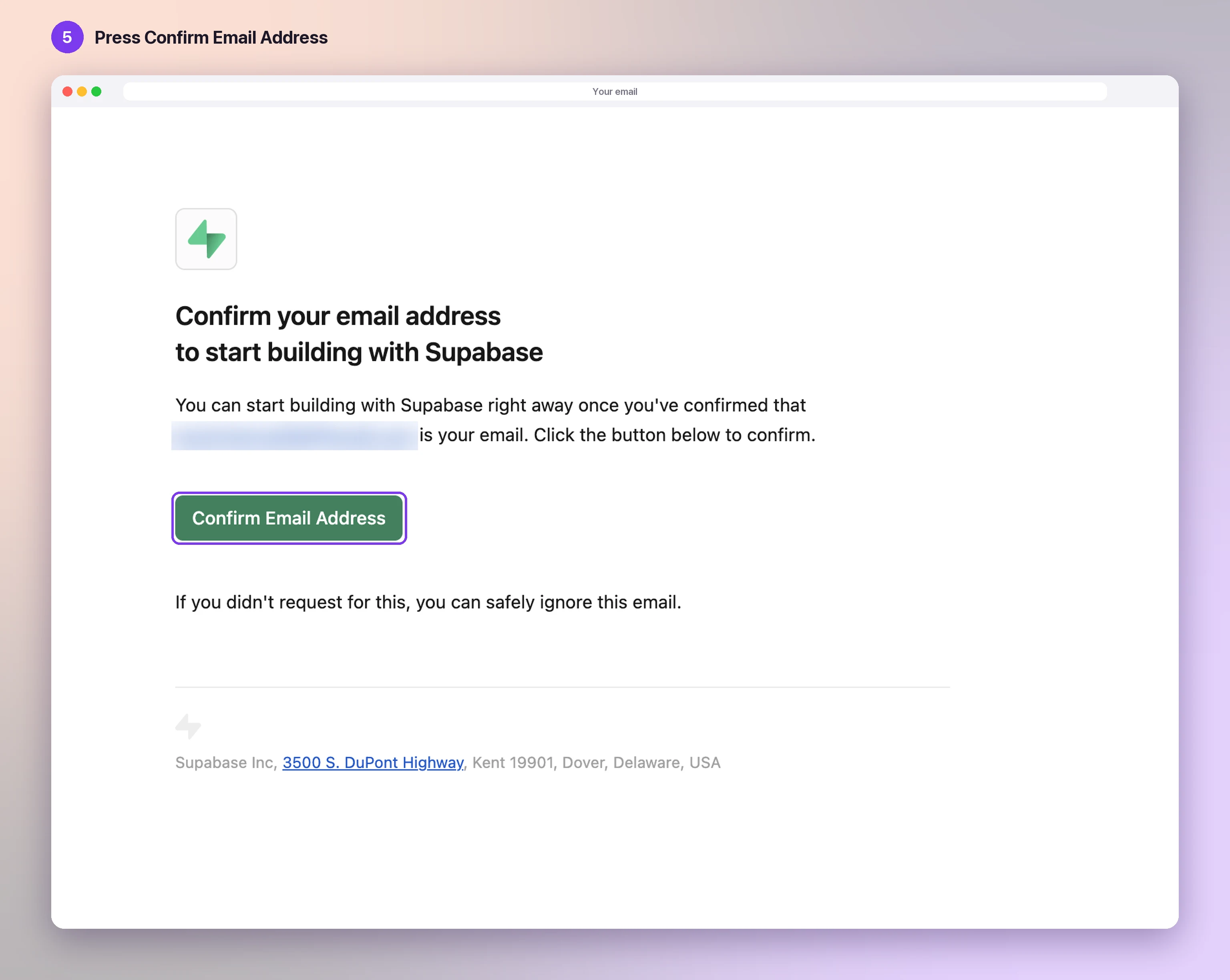
Confirm your email address
Open the email from Supabase and press Confirm Email Address. Supabase then opens in your browser, signed in.
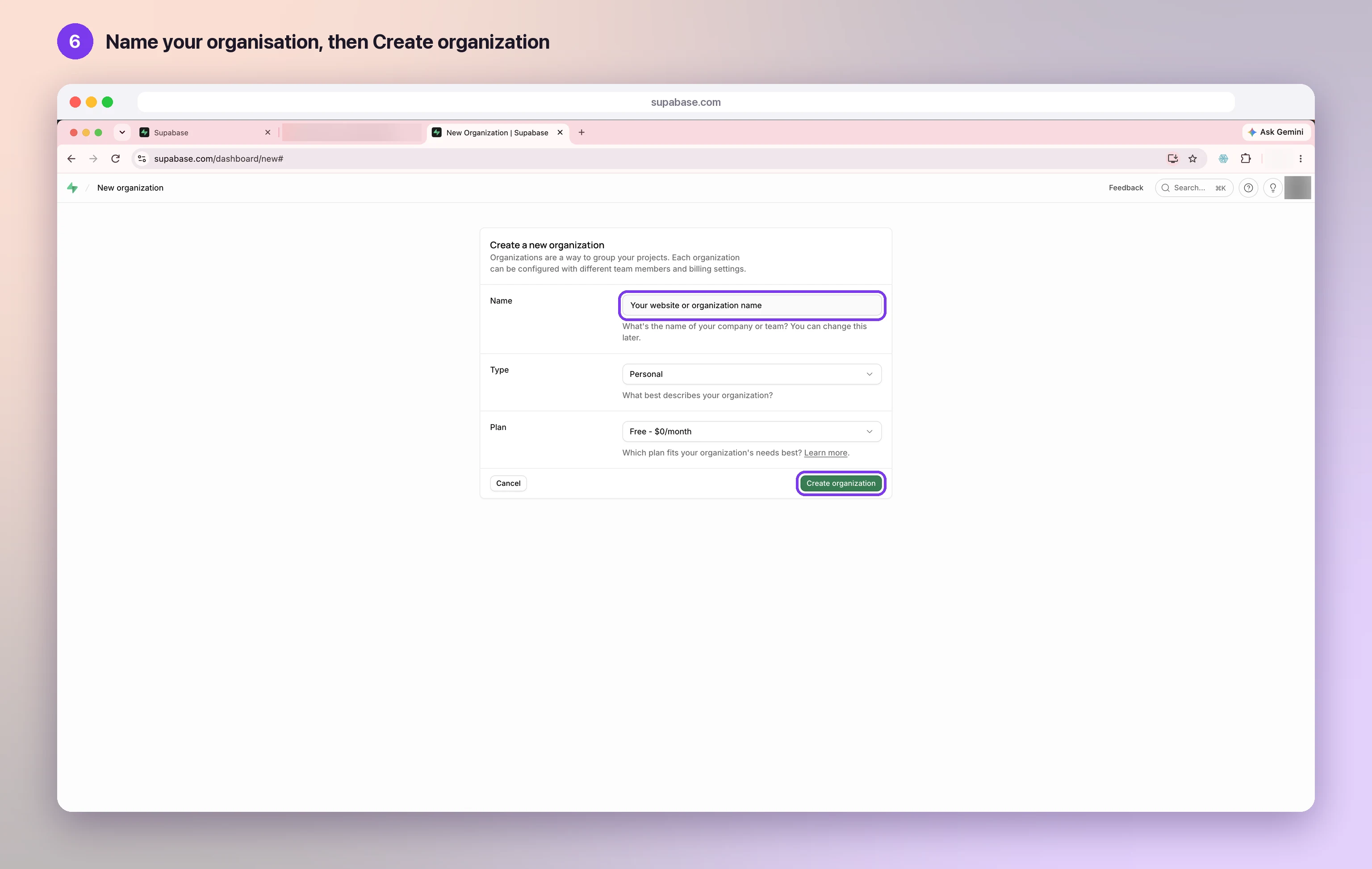
Create your organisation
Give your organisation a name, such as your business or website name, keep the Free plan, and press Create organization. 3Edit connects to this organisation. Supabase explains organisations and their members in Supabase: access control.
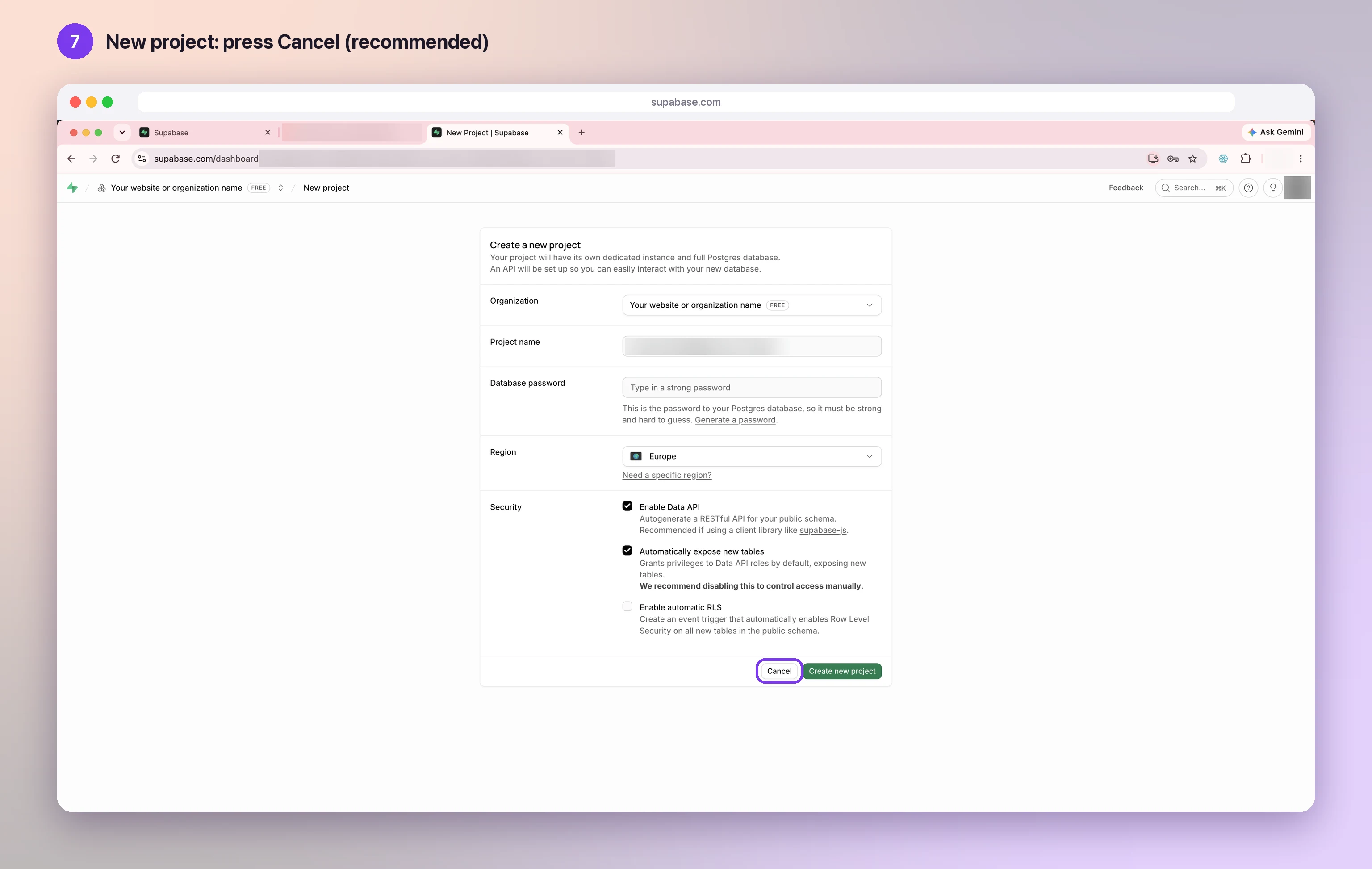
New project: press Cancel (recommended)
Supabase now offers to create a project. Press Cancel: 3Edit creates the database for your store when you connect, with everything set up for you. This is the recommended way.
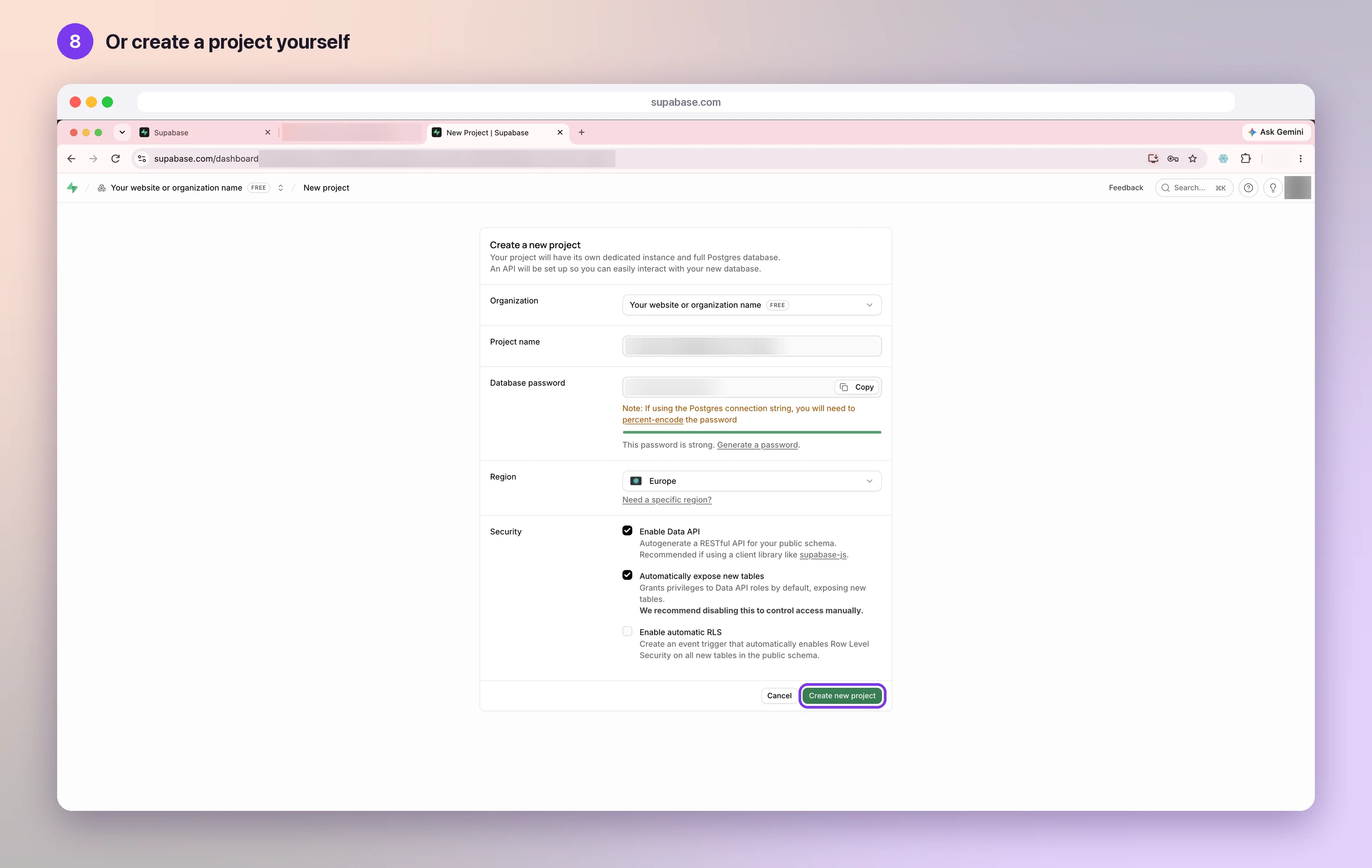
Or create a project yourself
Would you rather make the project yourself? Fill in the form and press Create new project. Later, in 3Edit, you choose it under Your existing databases.
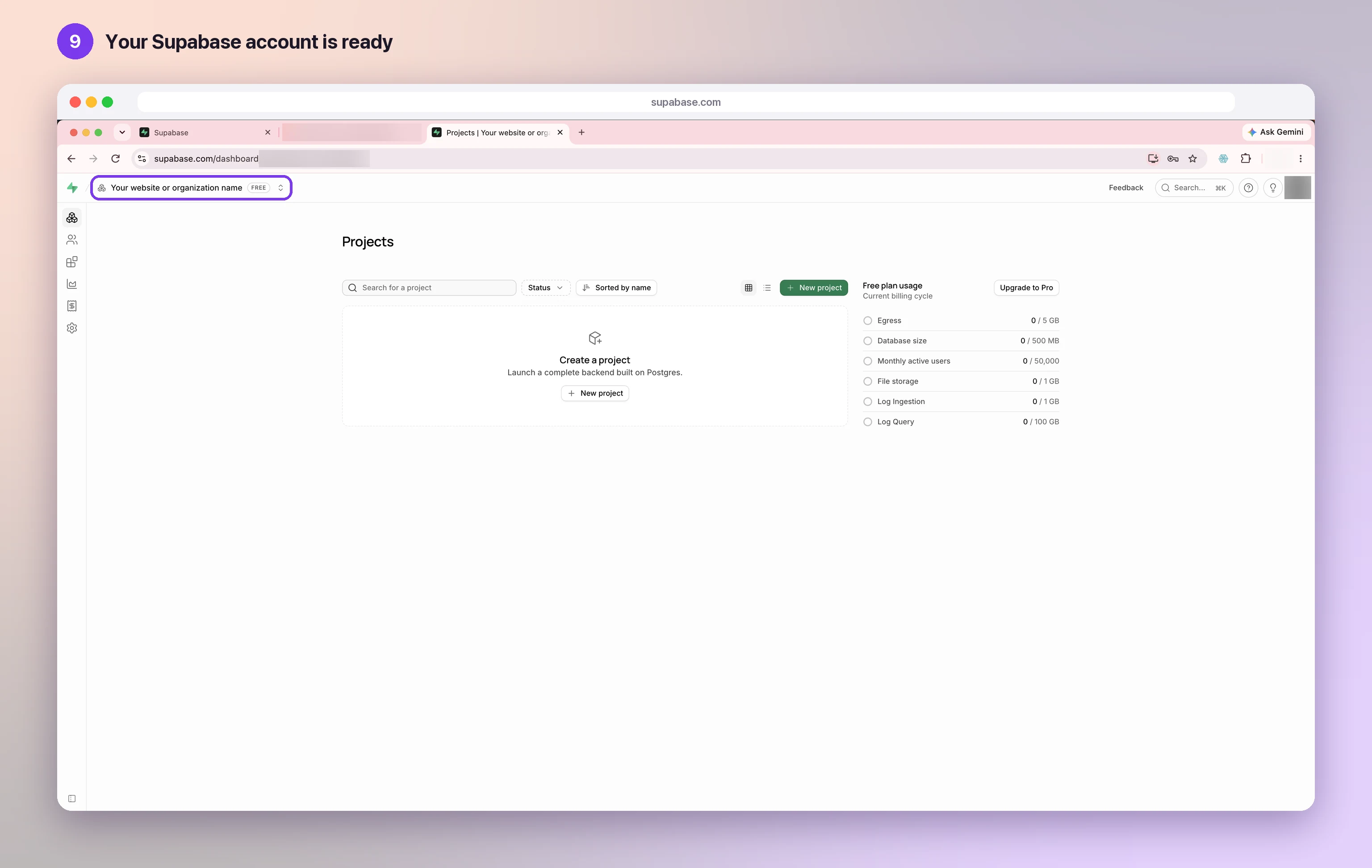
Your Supabase account is ready
Your account and organisation are ready: the organisation shows at the top left of the Projects page. Now connect Supabase to 3Edit in part 2.
Connect Supabase to 3Edit
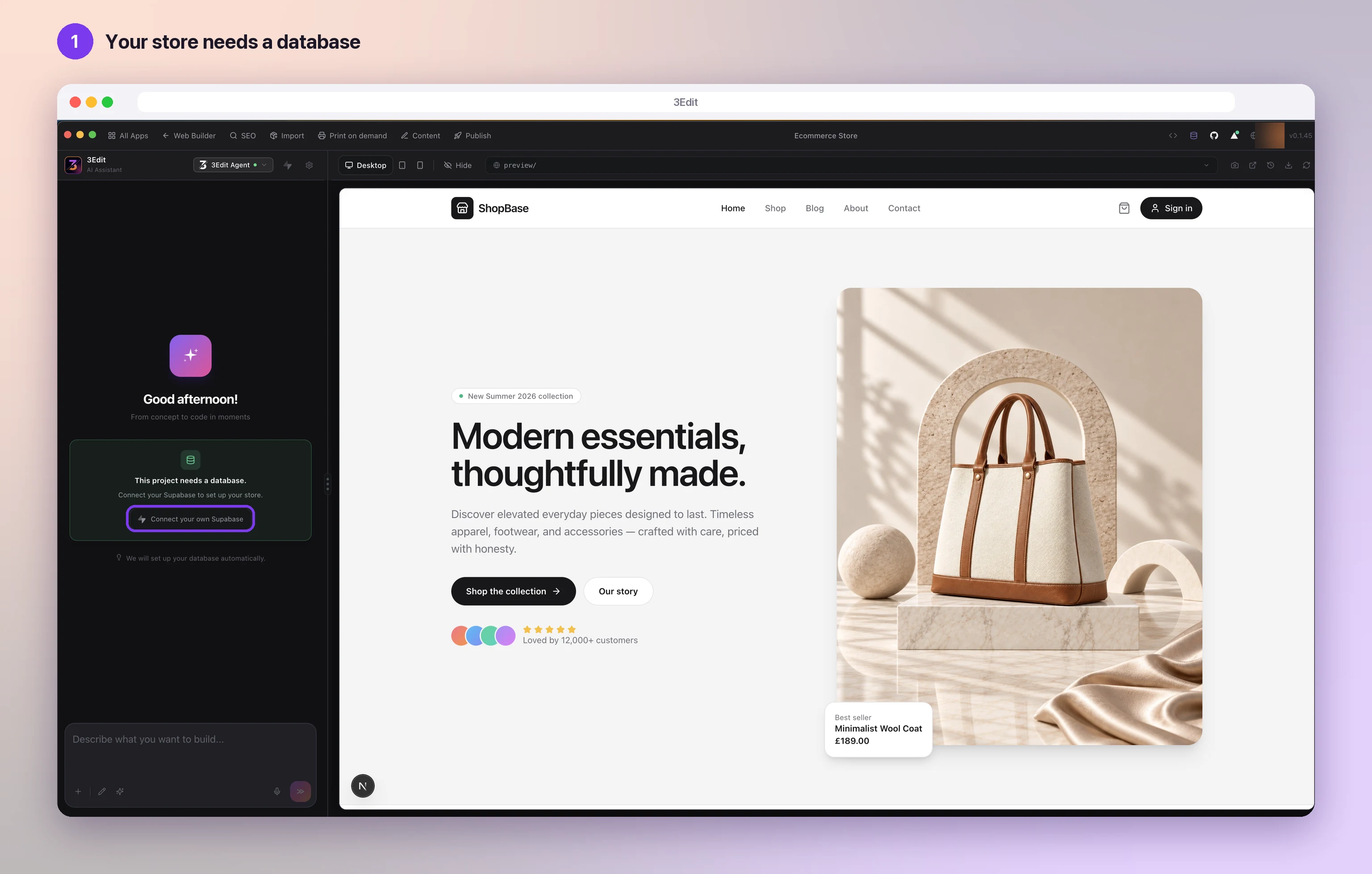
Your store needs a database
Your store keeps its orders and customer accounts in a database. In 3Edit, the chat shows This project needs a database: press Connect your own Supabase.
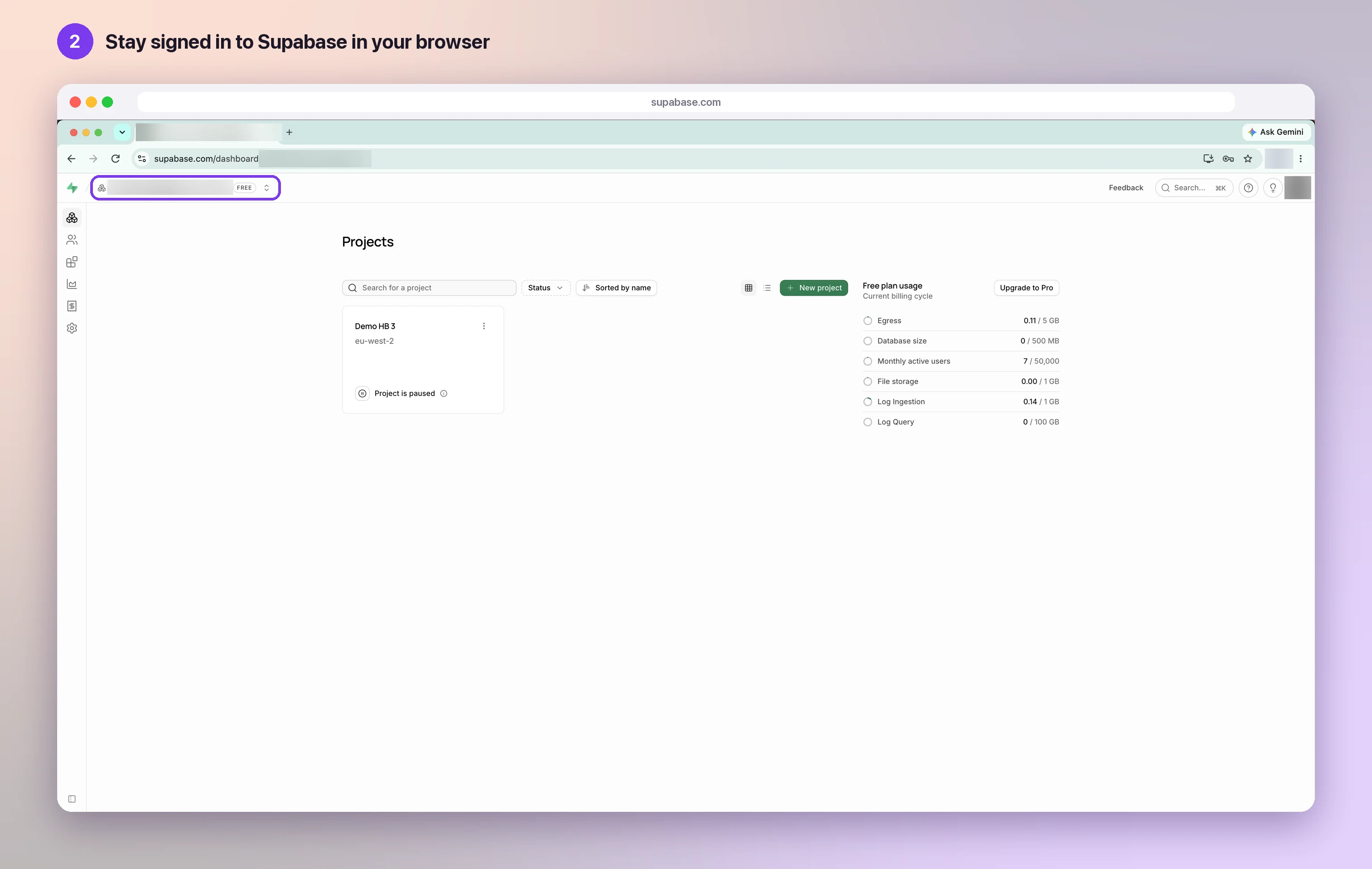
Stay signed in to Supabase in your browser
Keep supabase.com signed in to your account in your usual browser. 3Edit opens Supabase there to ask for your permission.
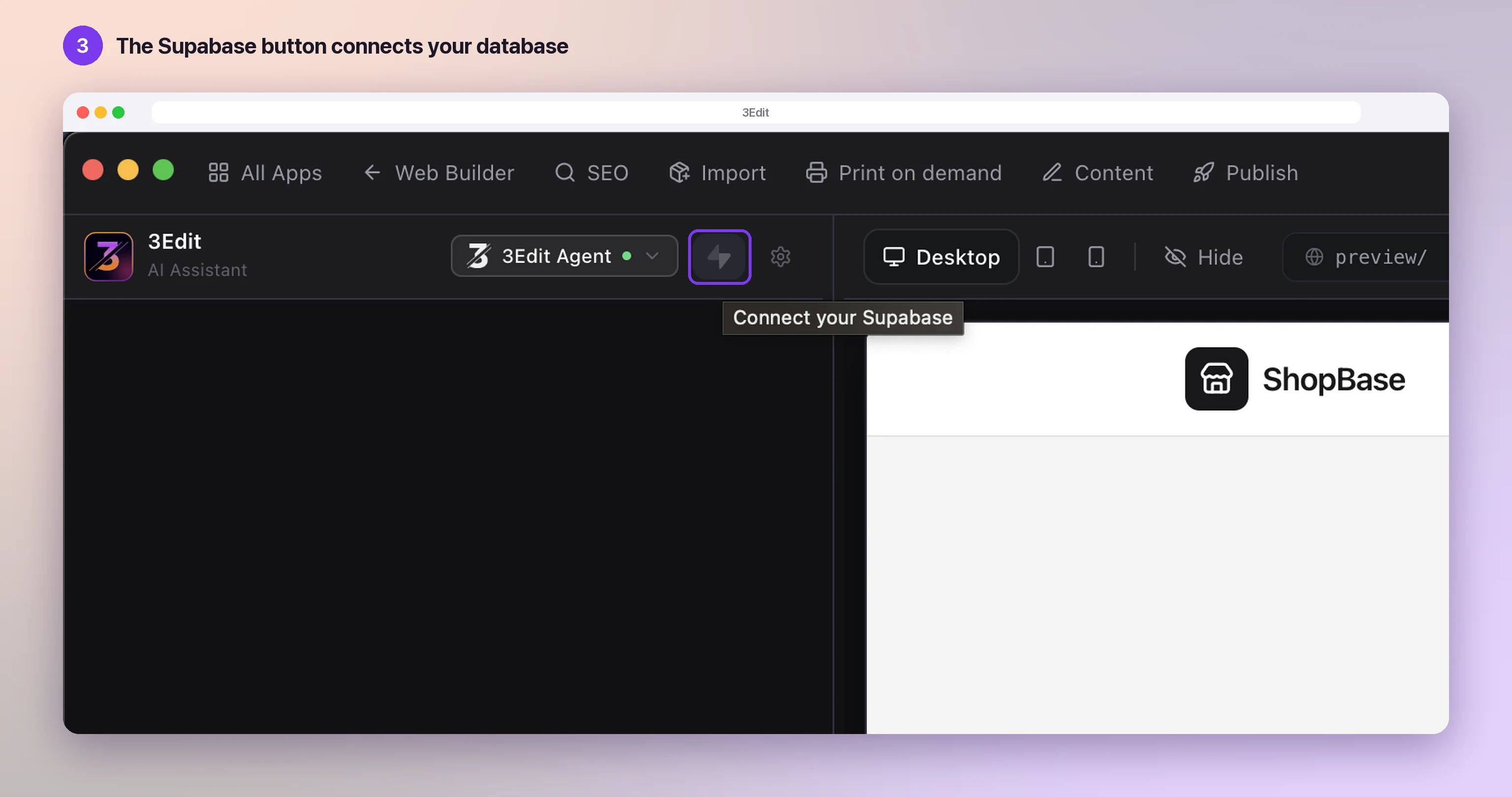
The Supabase button
You can also use the lightning button at the top of the chat, Connect your Supabase, at any time.
Press Connect your own Supabase
The Your Supabase panel opens. Press Connect your own Supabase: 3Edit creates your store’s tables in your own Supabase, so your data stays in your control.

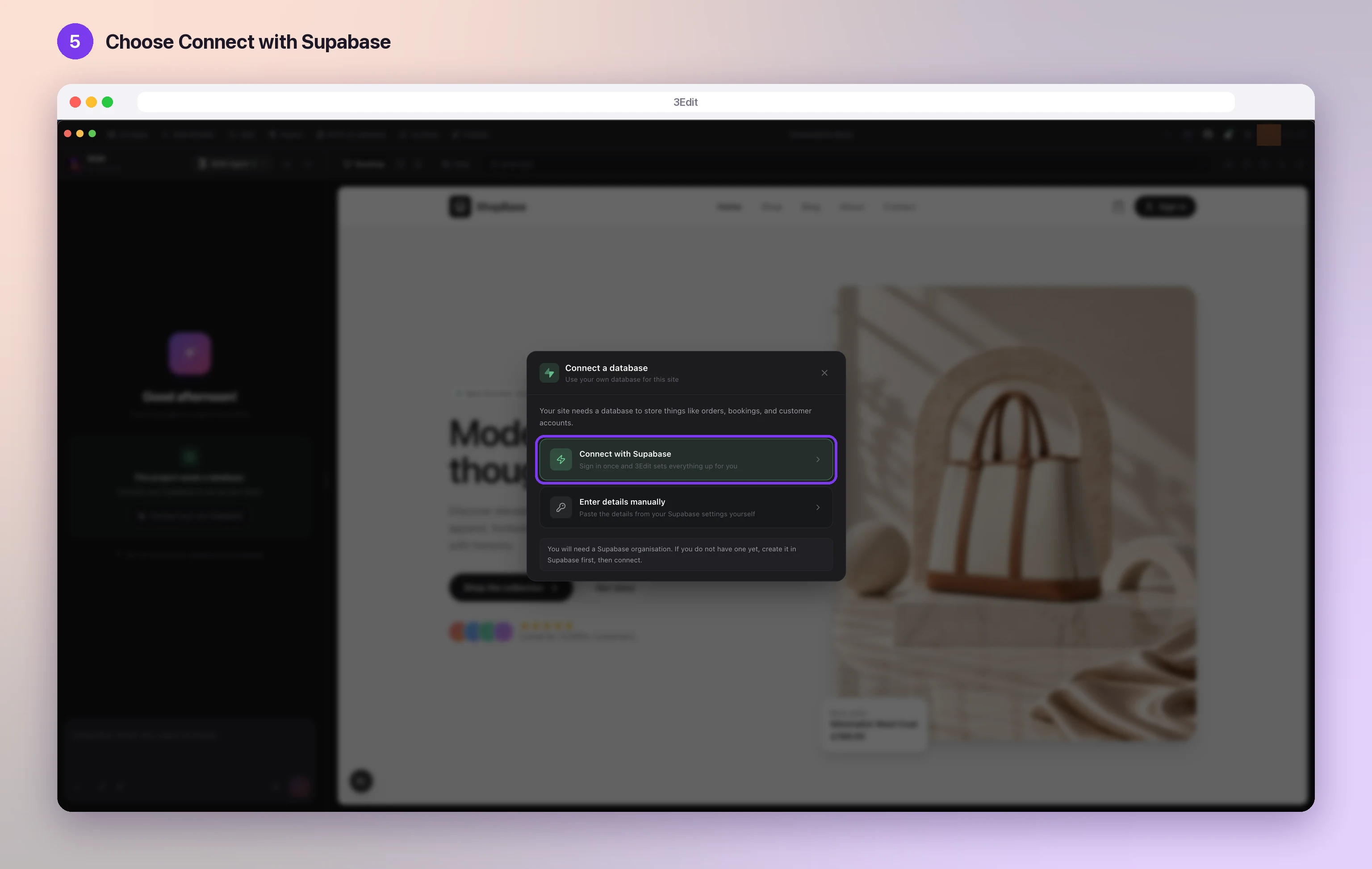
Choose Connect with Supabase
Choose Connect with Supabase. You sign in once and 3Edit sets everything up for you.
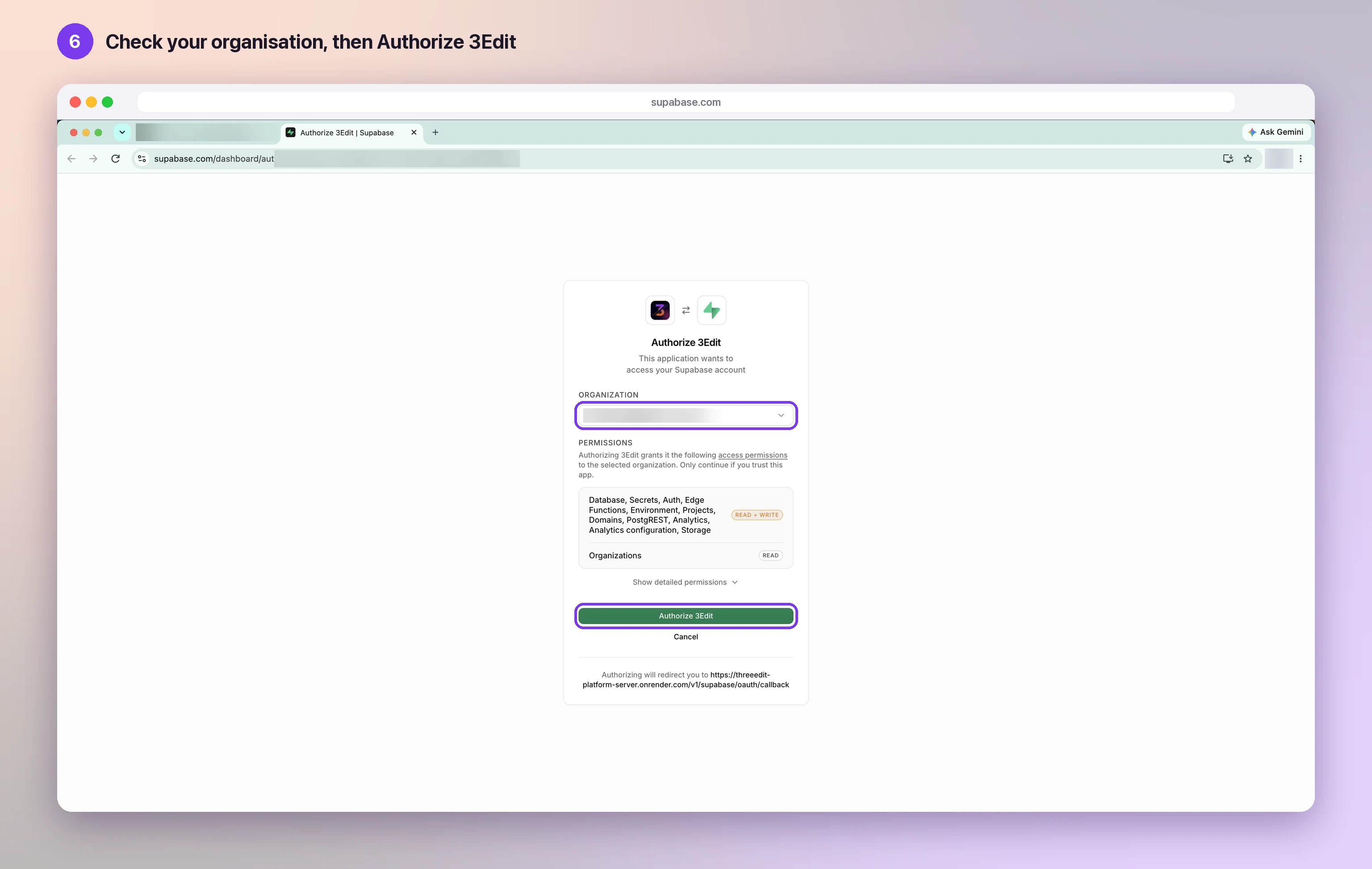
Check your organisation, then Authorize 3Edit
Your browser opens Supabase. Check that the organisation is the one you created in part 1, then press Authorize 3Edit.
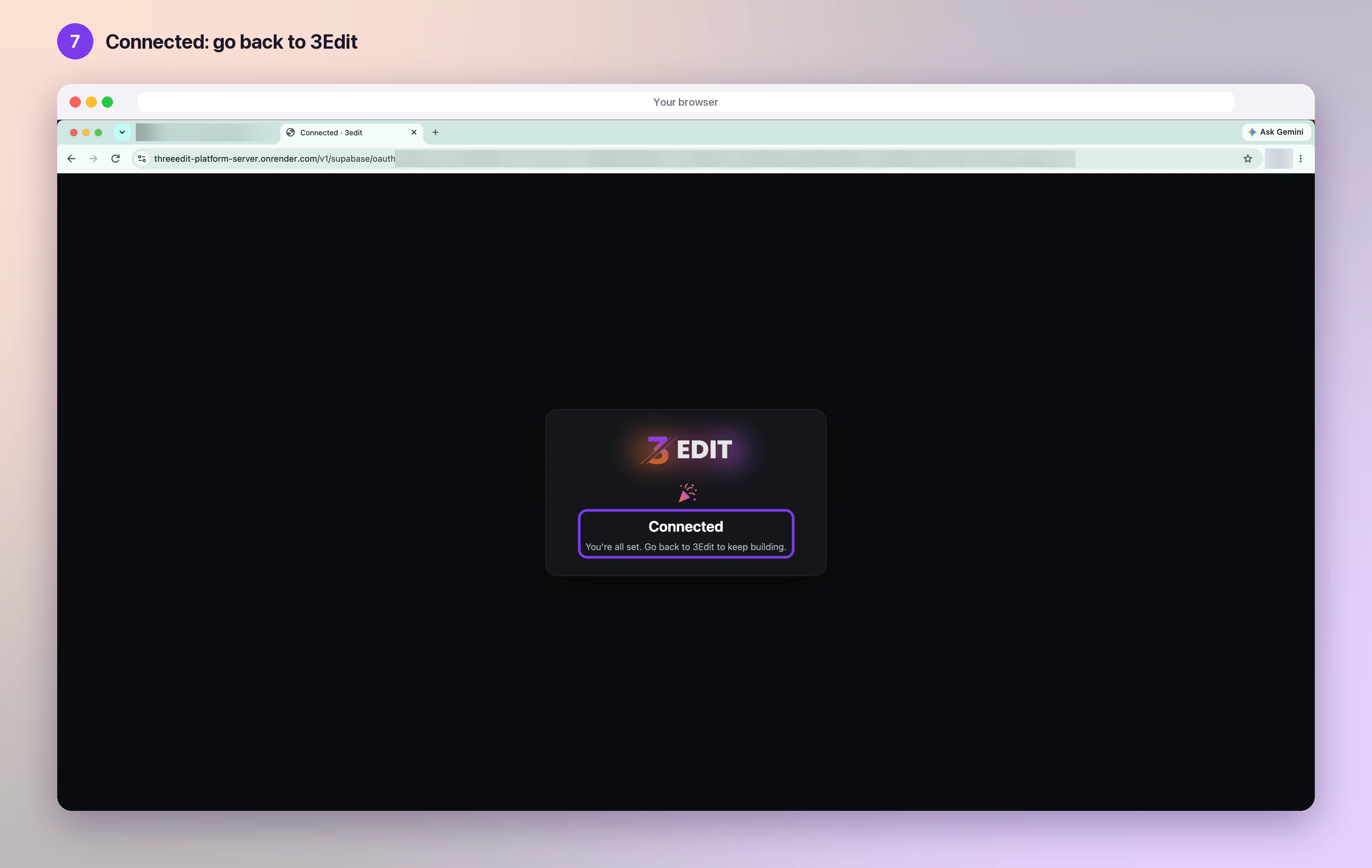
Connected: go back to 3Edit
The browser shows Connected: you’re all set. Go back to the 3Edit app to carry on.
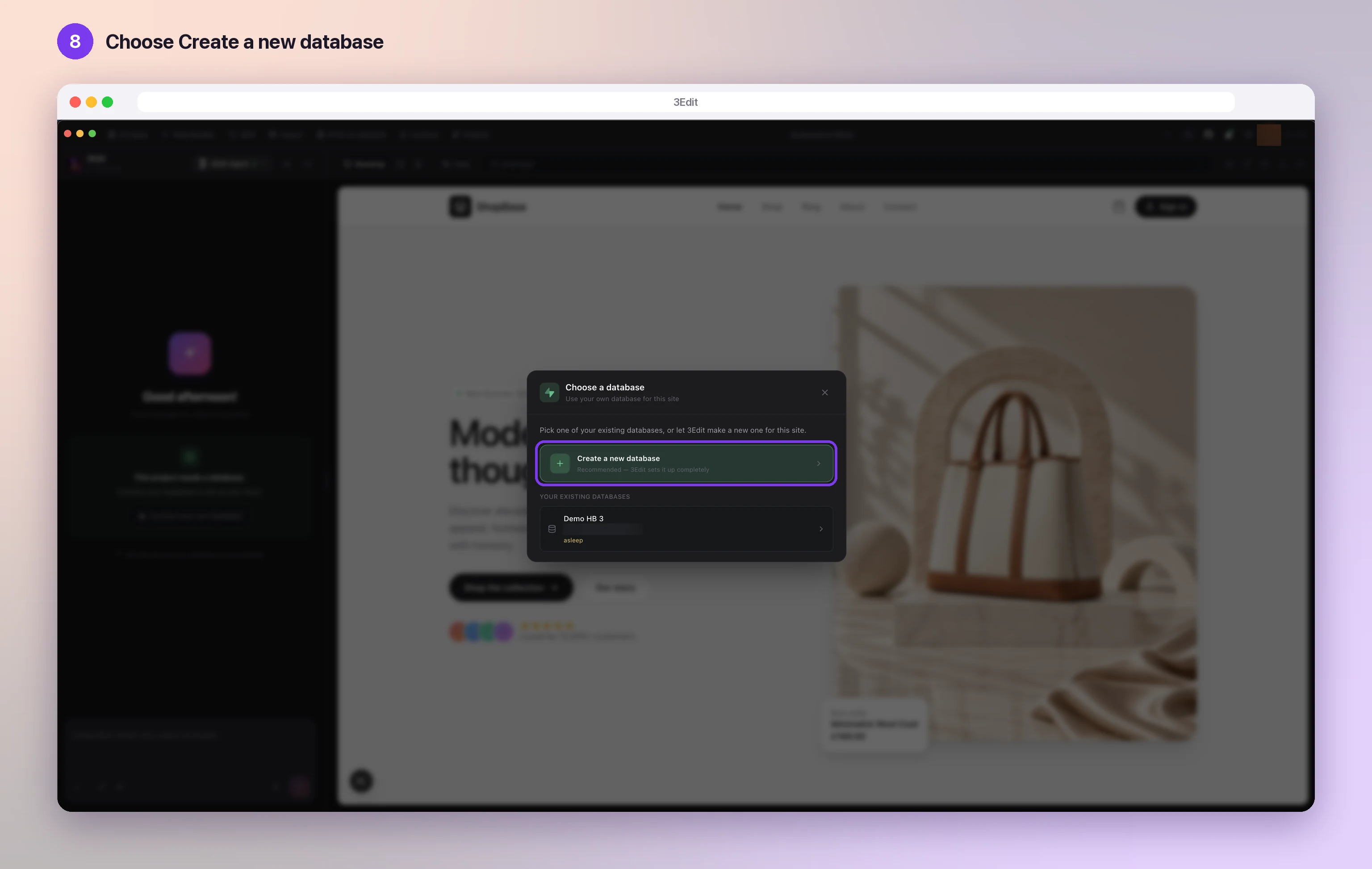
Choose Create a new database
Back in 3Edit, choose Create a new database, the recommended choice: 3Edit sets it up completely. If you made a project yourself in part 1, choose it under Your existing databases instead.
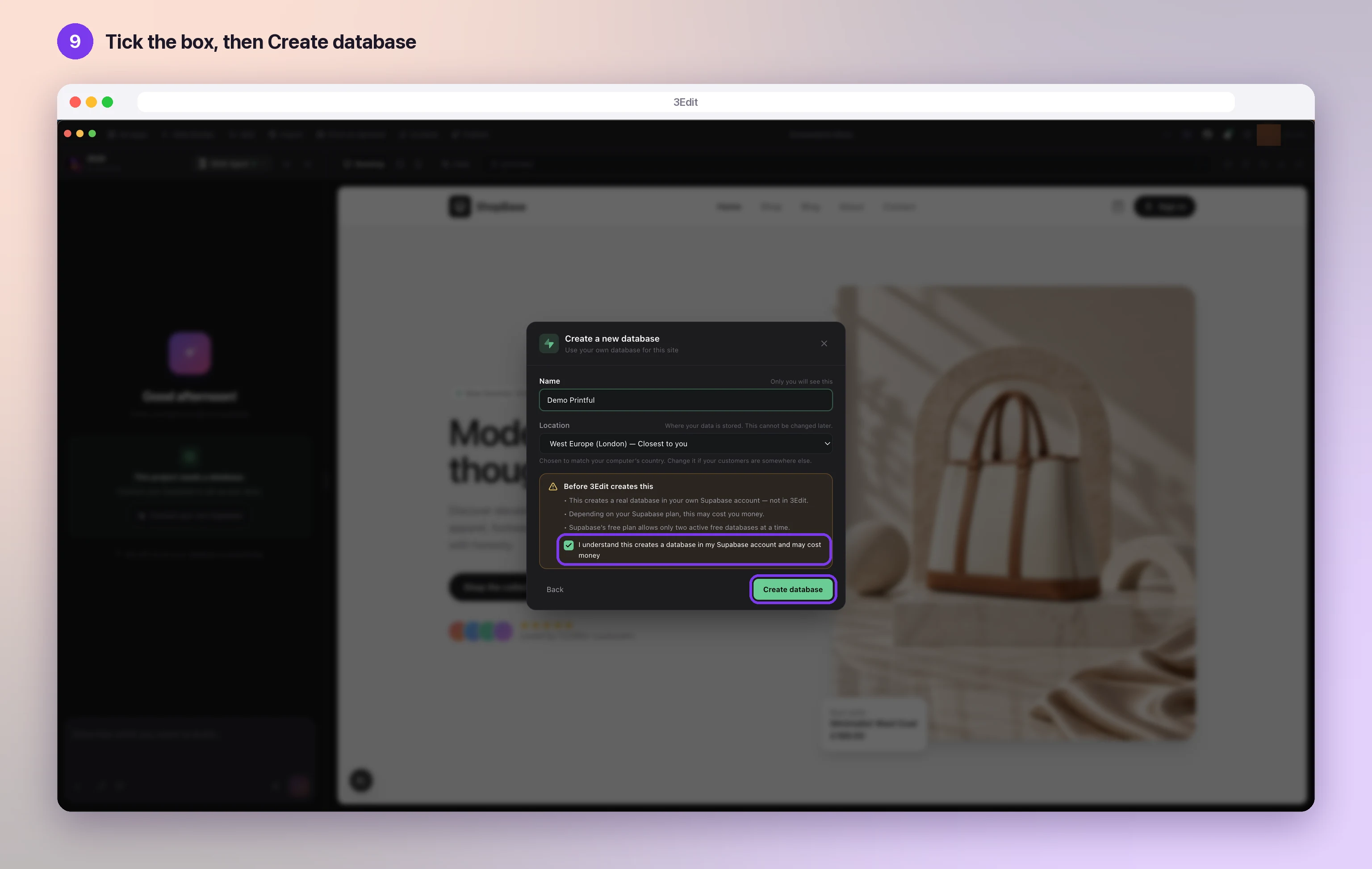
Tick the box, then Create database
Give the database a Name only you will see, and keep the Location closest to you, or pick the one closest to most of your customers: it can’t be changed later. Tick the box, then press Create database.
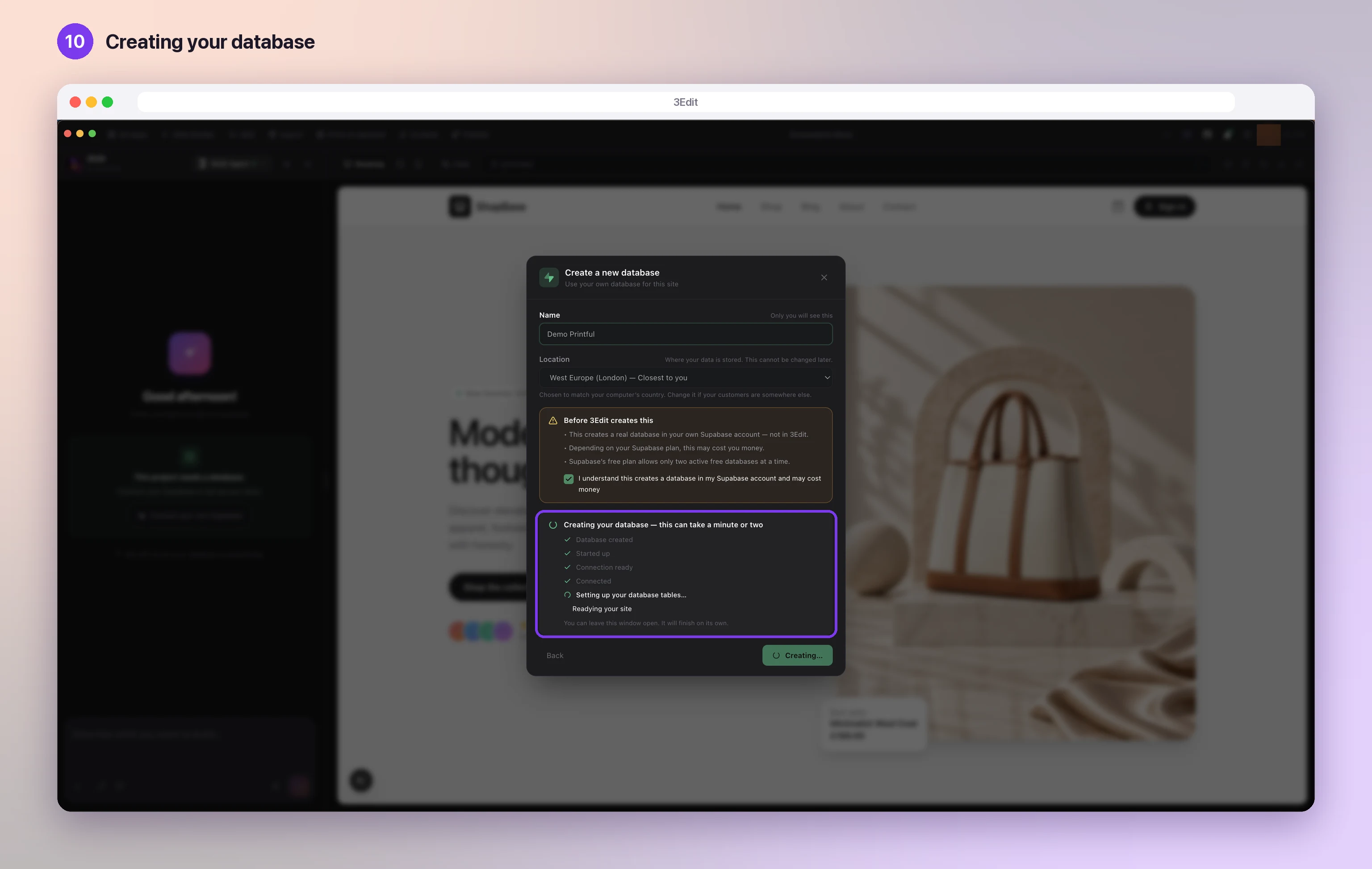
Creating your database
3Edit creates your database and its tables, and ticks off each stage as it goes. This can take a minute or two, and you can leave the window open while it finishes.
Supabase connected
Your store is connected: the chat shows Supabase connected. Next, create your account in the store preview and sign in to your store admin.

Good to know
- Supabase’s free plan includes two active free databases at a time. For more, see Supabase pricing.
- The database is yours: it lives in your own Supabase account, and you can open it there at any time.
- New to Supabase? Supabase: getting started is a friendly tour of what it can do.
Helpful links
Next: Open your store admin.
- Open your store adminThe first account created on your store becomes its admin. Create yours in the store preview, sign in, and add more admins whenever you like by asking the chat.Next guide
- Choose the Ecommerce starter kitStart your store from the Ecommerce starter kit: shop pages, cart, checkout, customer accounts and a full store admin, ready in minutes.Read the guide
- Set up your print on demand store, step by stepThe hands-on setup tutorial: nine steps with screenshots, from your 3Edit account to Printful, your first product and your live store.Read the guide
Start vibe coding today.
Download 3Edit for Mac or Windows and build your first professional website in minutes.