 EDIT
EDIT Guide
GuideSet up your print on demand store, step by step.
The hands-on setup tutorial: nine steps with screenshots, from your 3Edit account to Printful, your first product and your live store.
About an hour from start to your first listed productLast updated
On this page
What you need
New to print on demand? See how print on demand works with 3Edit first. This tutorial is the hands-on setup, and you need:
- A 3Edit account. It starts with a 7-day free trial, then you choose the plan that suits you.
- A free Supabase account, which holds your store’s products, orders and customer accounts.
- A Stripe account, for card payments.
- A Resend account for your store’s emails (it has a free plan), or your own email server.
- A free Printful account, which prints and ships each order.
Your store in nine steps.
Each step has its own short guide with screenshots. Follow them in order, and your store is live with its first product.
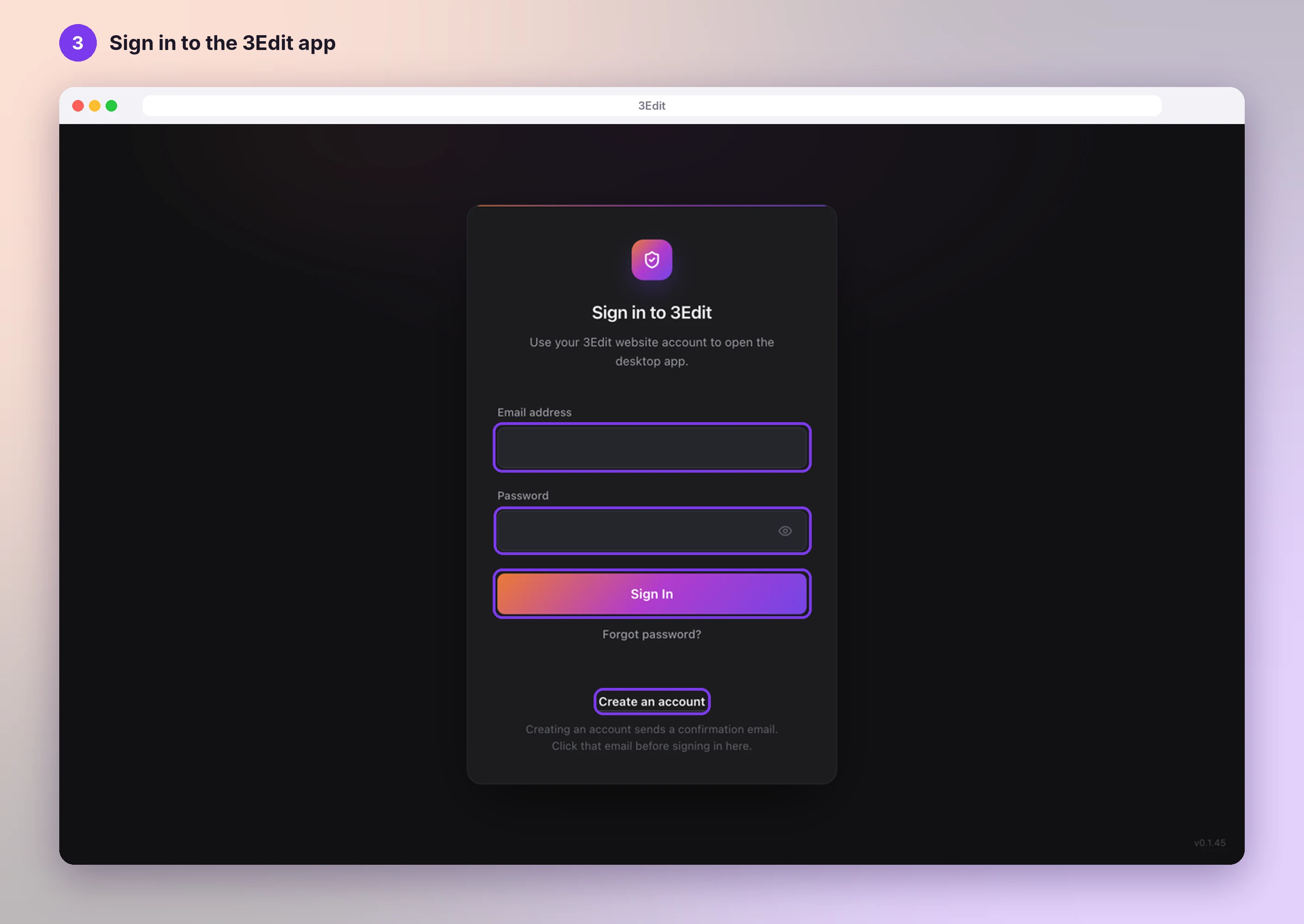
Create your 3Edit account and sign in
Make your account on 3edit.com, confirm your email, then sign in to the 3Edit desktop app.
Open the guide: Create your 3Edit accountChoose the Ecommerce starter kit
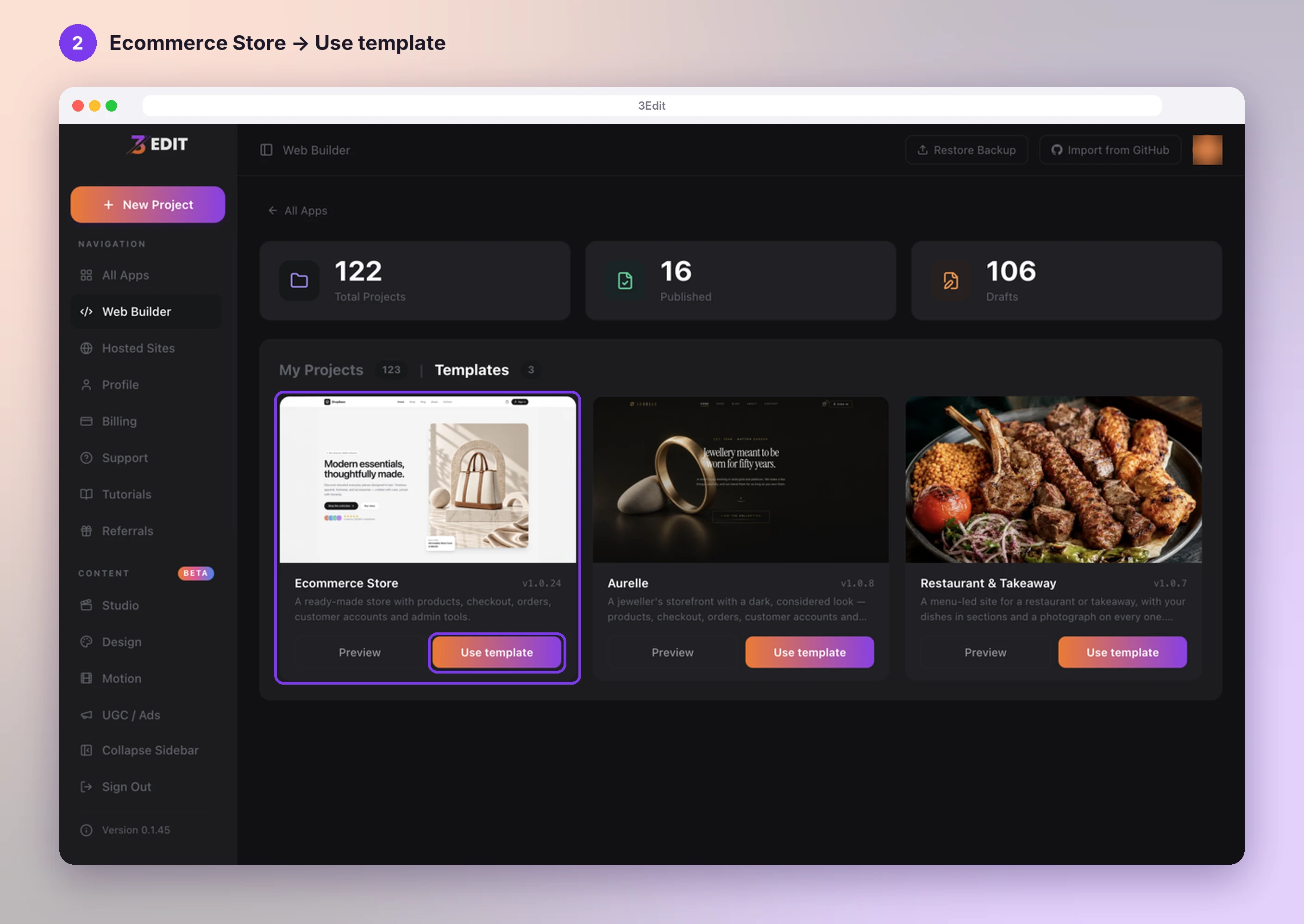
In the Web Builder, open Templates and press Use template on Ecommerce Store. Your store opens with its shop pages, cart, checkout, customer accounts and store admin ready to go.
Open the guide: Choose the Ecommerce starter kitCreate and connect your Supabase account
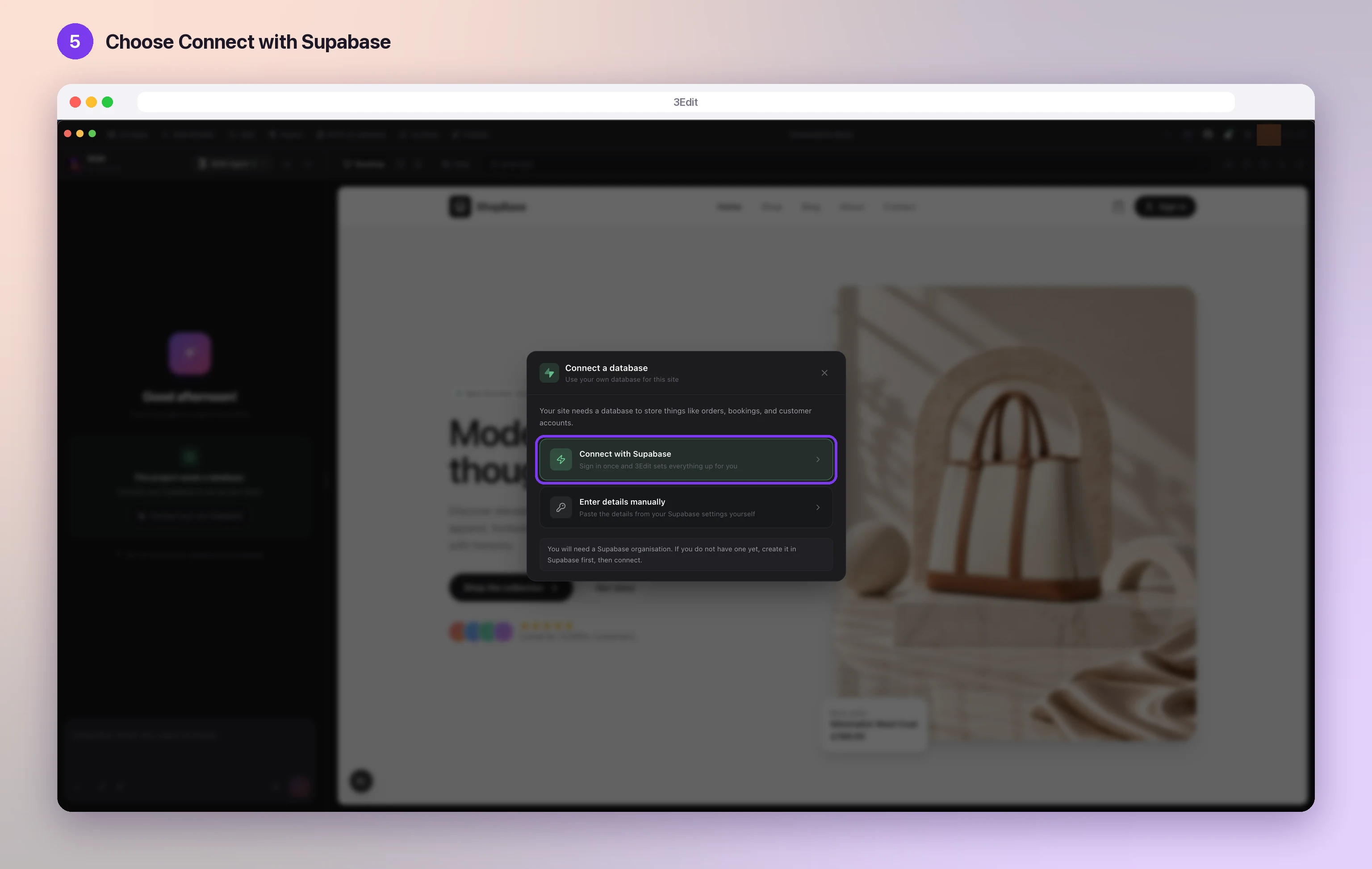
Create your free Supabase account and organisation, then press Connect your own Supabase in 3Edit. 3Edit creates your database and sets up all its tables for you.
Open the guide: Create and connect your Supabase accountOpen your store admin
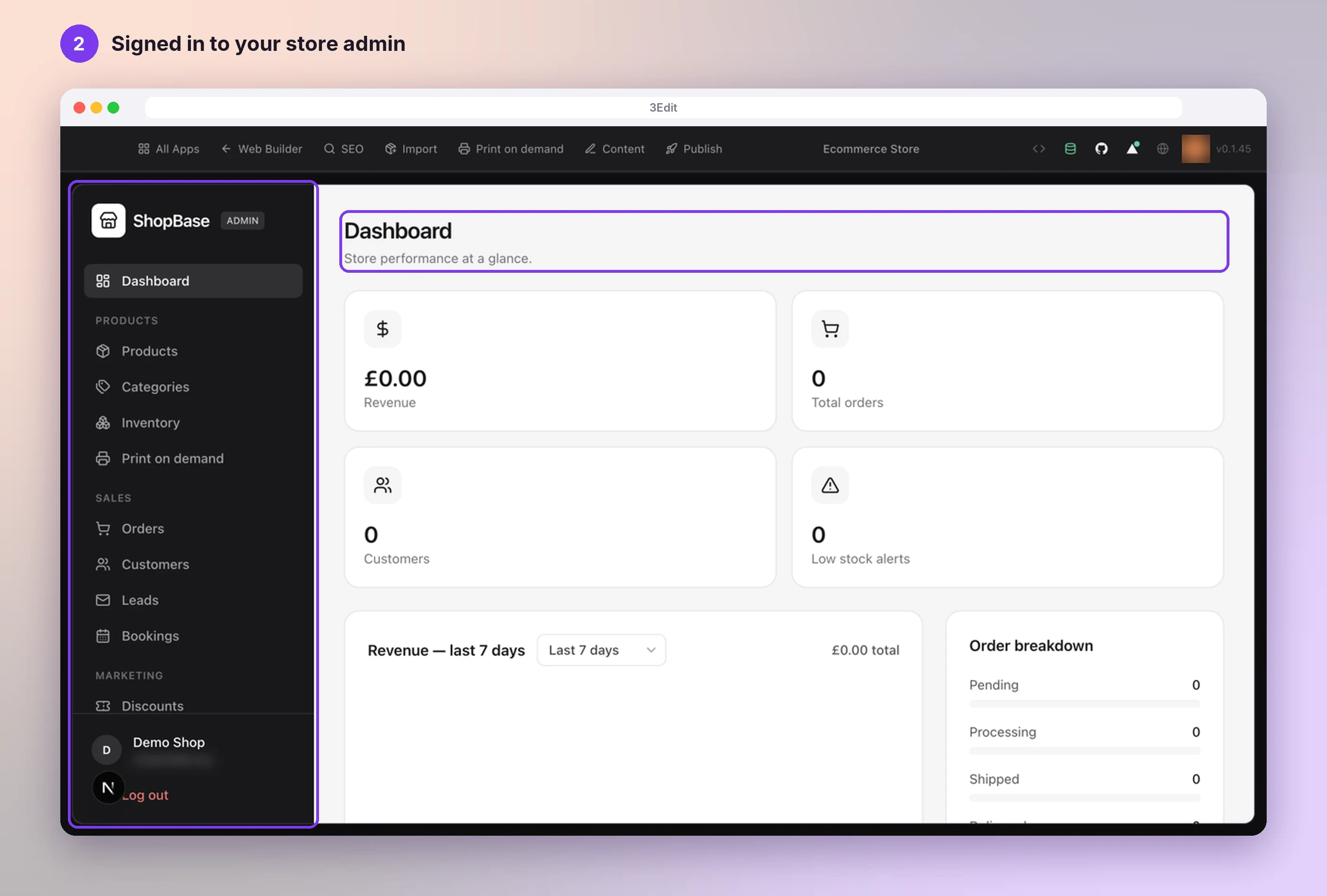
In your store’s preview, press Sign in and create your account: the first account created on a store becomes its admin. Then sign in to your store admin.
Open the guide: Open your store adminSet up payments with Stripe
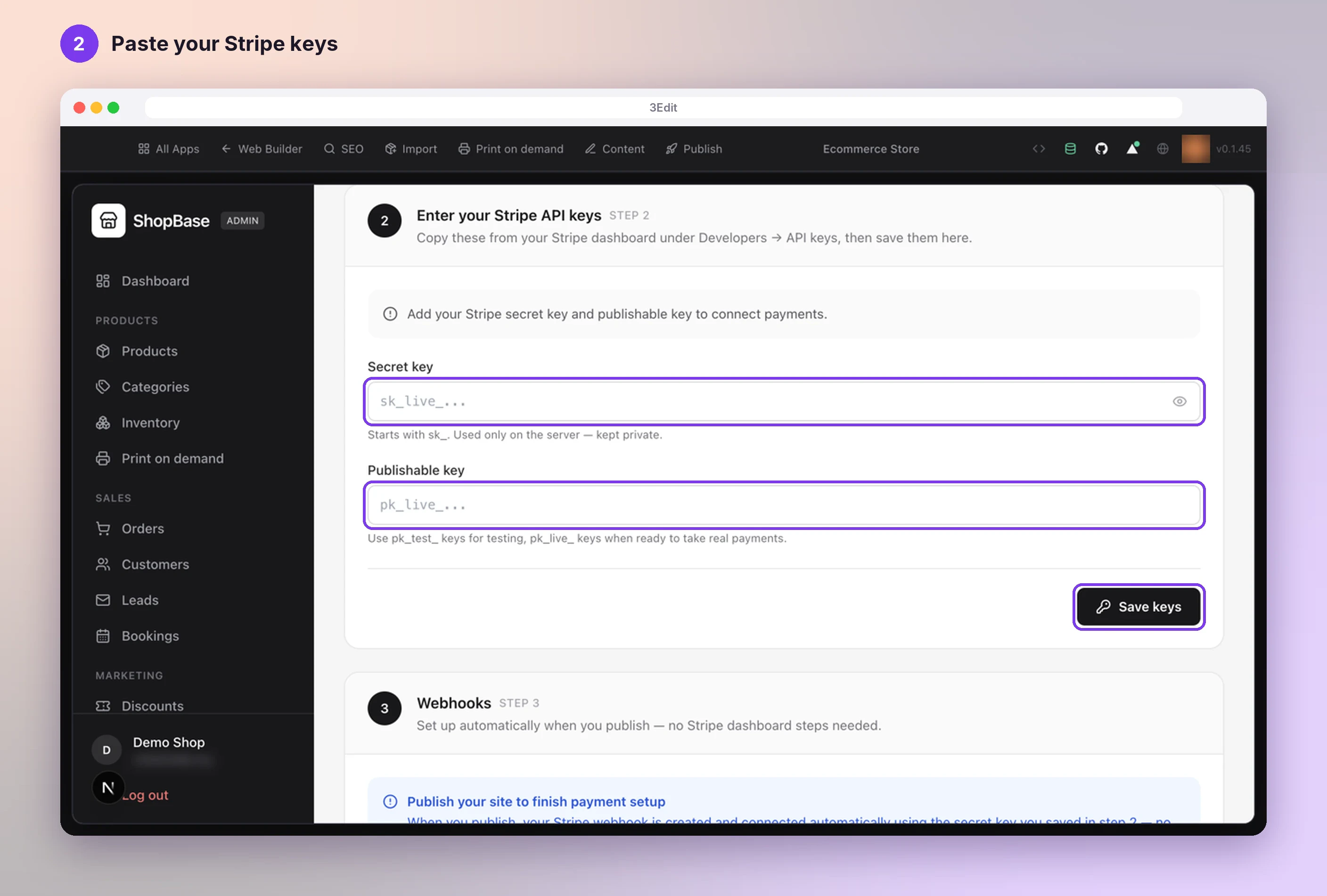
In Payments, choose your currency and paste your two Stripe keys. 3Edit sets up the rest when you publish.
Open the guide: Set up payments with StripeSet up your store emails
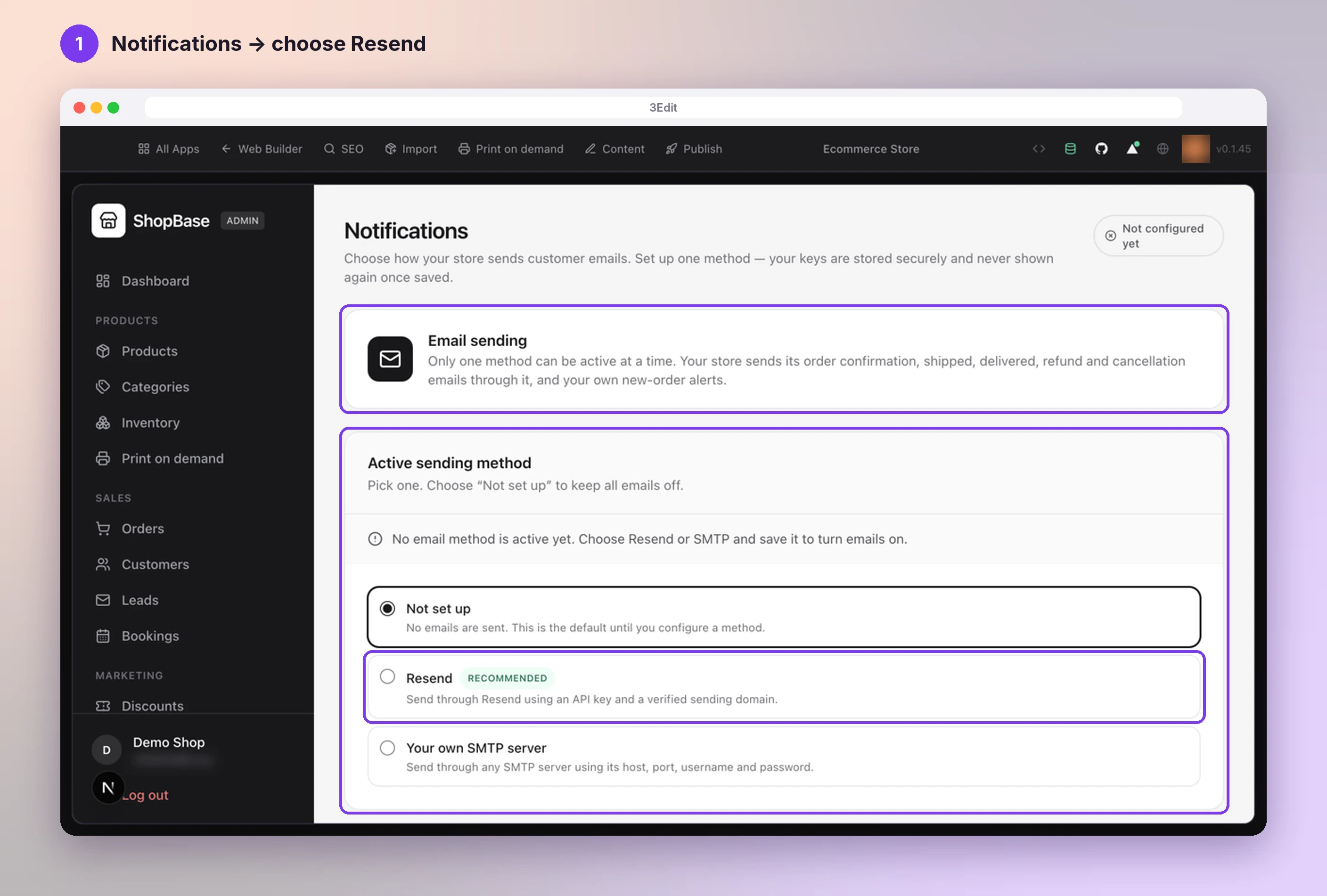
In Notifications, choose Resend and paste your API key and sending address, or choose your own email server.
Open the guide: Set up your store emailsConnect Printful
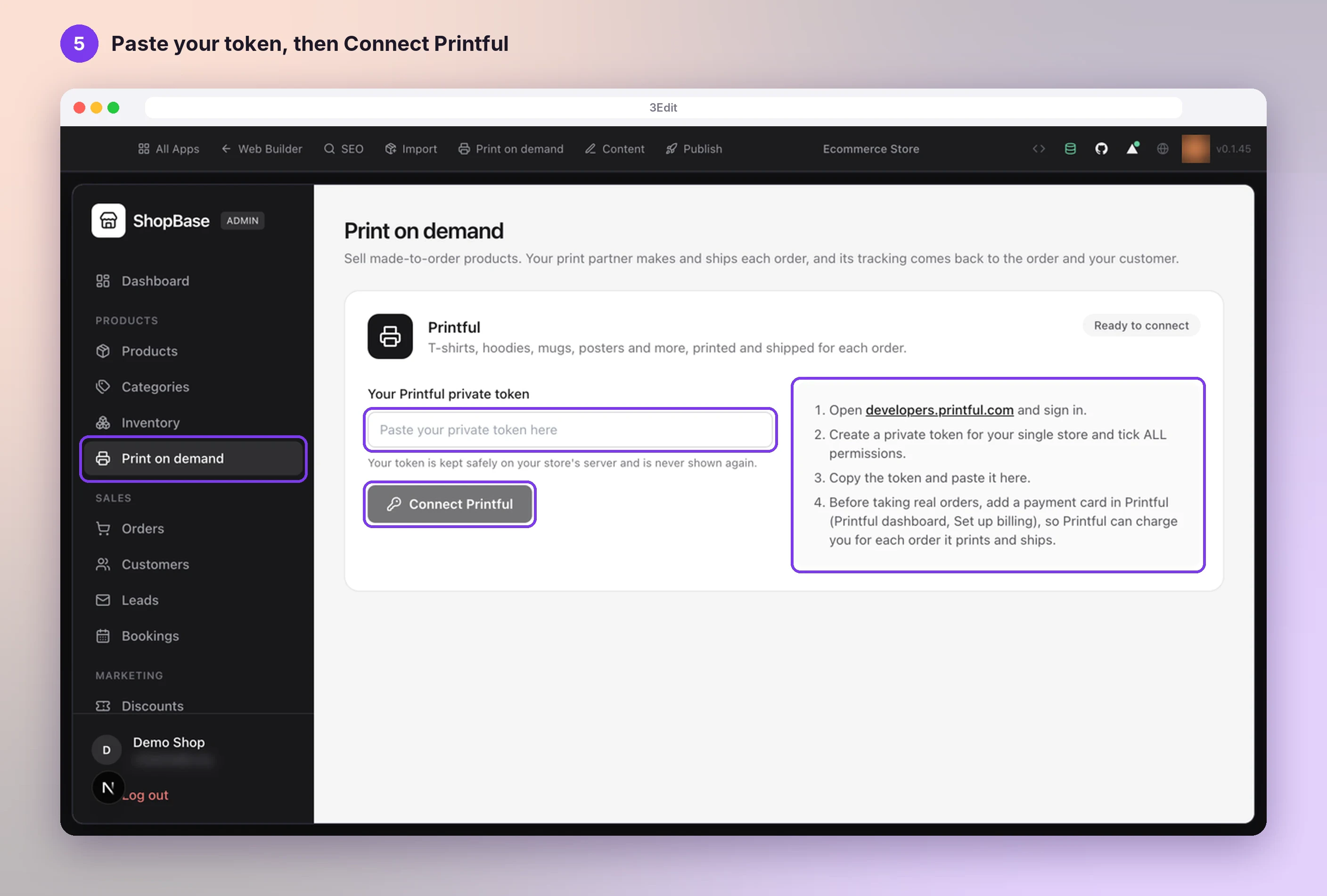
Create your free Printful account and a private token, add a billing card, then paste the token into Print on demand in your store admin and press Connect Printful.
Open the guide: Connect PrintfulCreate your first product with AI
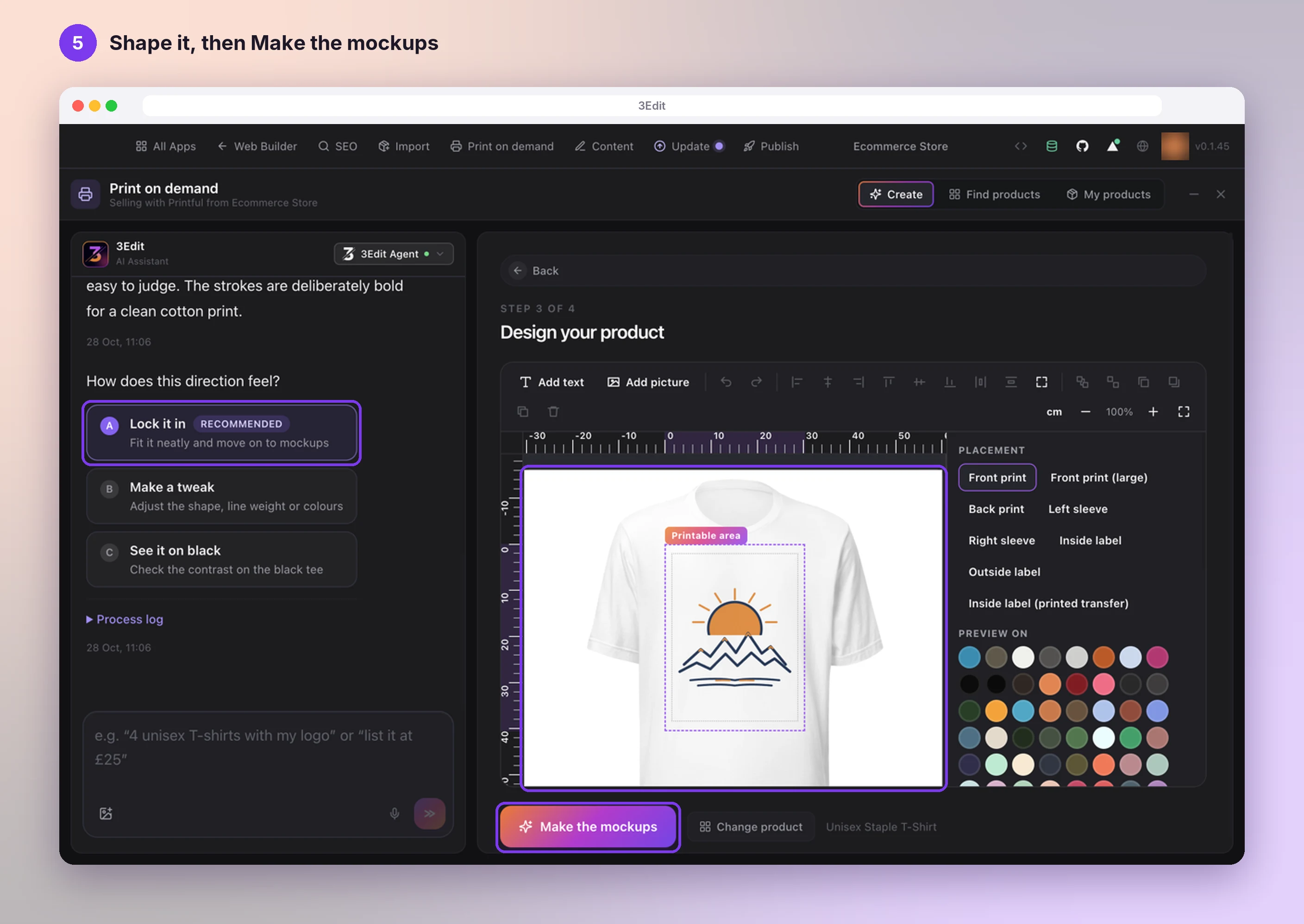
Open Print on demand in 3Edit, pick a product, describe your idea and let the assistant design it with you. Set your price and press List it in my shop.
Open the guide: Create products with the Print on demand appPublish your store
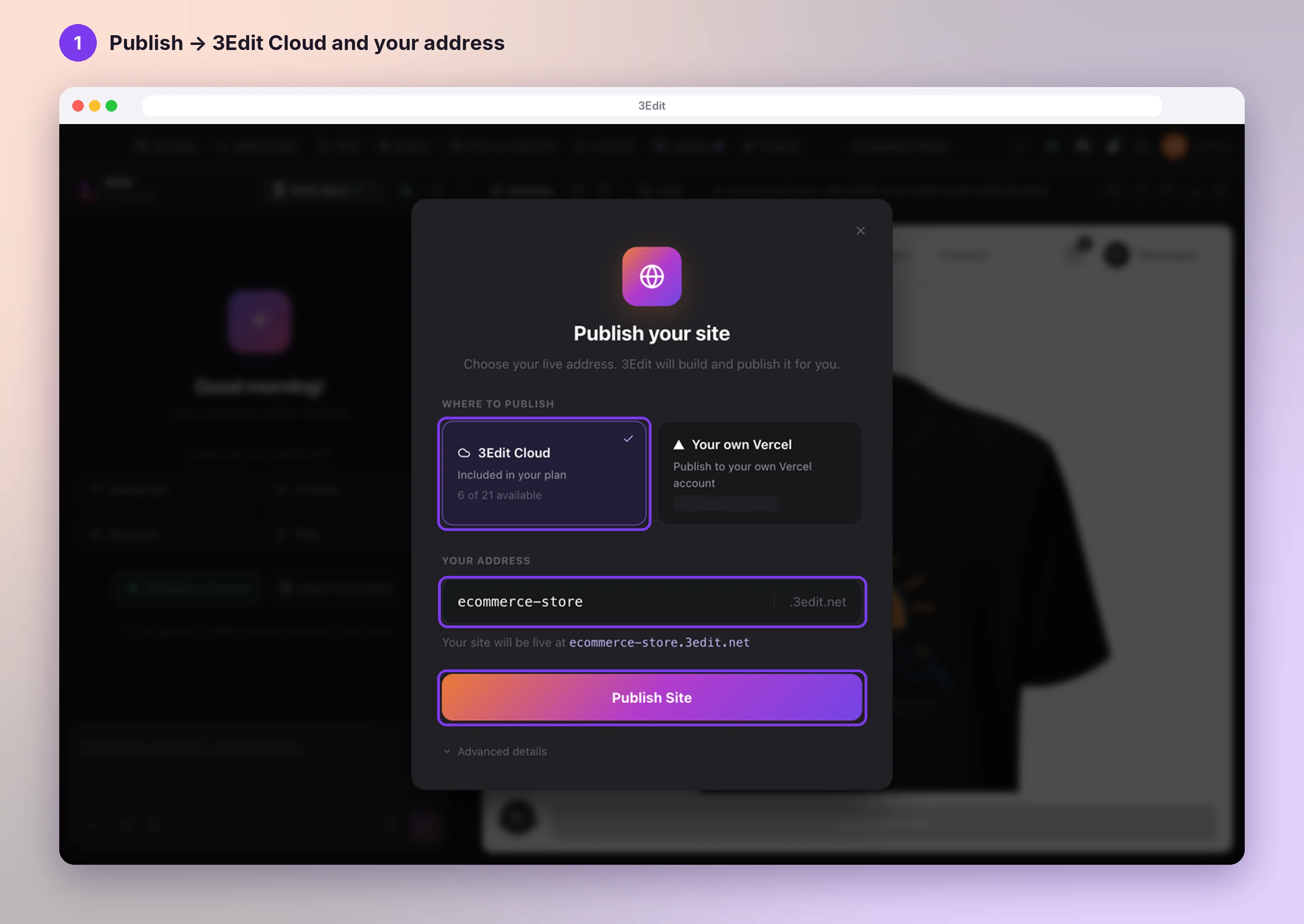
Press Publish, choose your address and press Publish Site. Your store is live and ready for its first order.
Open the guide: Publish your store
Good to know
- You can set up payments, emails and Printful (steps 5 to 7) in any order.
- Each order is printed only after it is paid. Your customer pays you through Stripe, and Printful charges your card for printing and shipping, so you never pay for stock up front.
- You set your own prices. Before you list a product, 3Edit shows Printful’s cost, what you earn and your margin for each item sold.
Helpful links
Next: Create your 3Edit account.
- Create your 3Edit accountCreate your 3Edit account on 3edit.com: it starts with a 7-day free trial. Confirm your email and sign in to the desktop app, and you are ready to build your store.Next guide
- Connect PrintfulSell T-shirts, hoodies, mugs and more without holding any stock. Printful prints and ships every order, and 3Edit connects your store to it in about five minutes.Read the guide
- Create products with the Print on demand appPick a product, describe your idea and let the AI assistant design it with you. See it on real mockups, set your price and list it in your shop in one click.Read the guide
Start vibe coding today.
Download 3Edit for Mac or Windows and build your first professional website in minutes.