 EDIT
EDIT Guide 6 of 9
Set up your store emails.
Your store sends order confirmations, shipping updates and your own new-order alerts. Set them up with Resend, or with your own email server.
About 5 minutesLast updated
On this page
Before you start
Your store sends its order confirmation, shipped, delivered, refund and cancellation emails, and your own new-order alerts, through the sending method you choose: Resend (recommended, with a free plan) or Your own SMTP server. This guide shows Resend step by step.
For Resend:
- Create your Resend account
- Resend: create an API key
- Resend: verify your domain, so your emails come from your own address
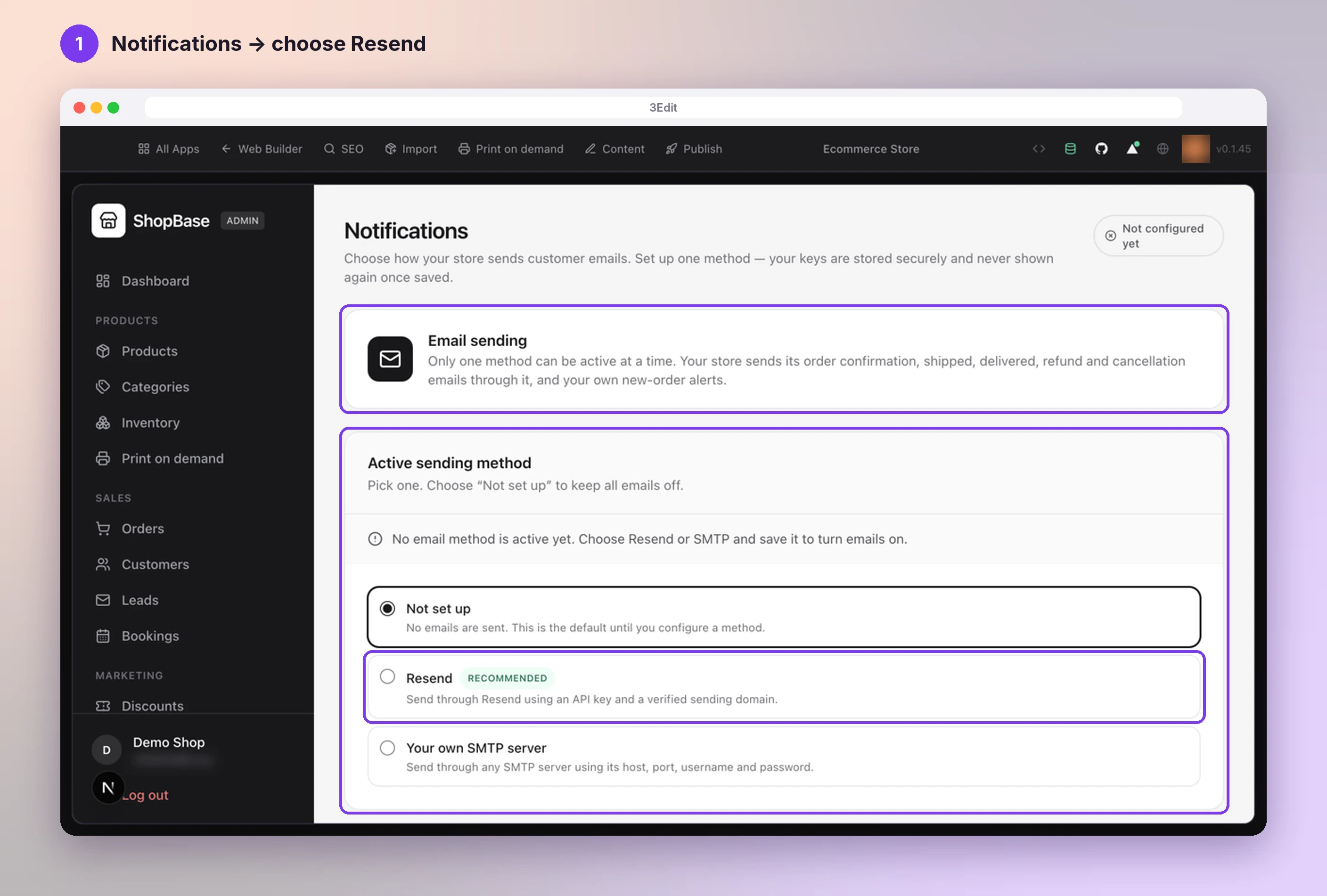
Open Notifications and choose Resend
Open your store admin and choose Notifications in the sidebar, under Settings. Under Active sending method, choose Resend: it sends through Resend using an API key and a verified sending domain.
Add your API key and sending address
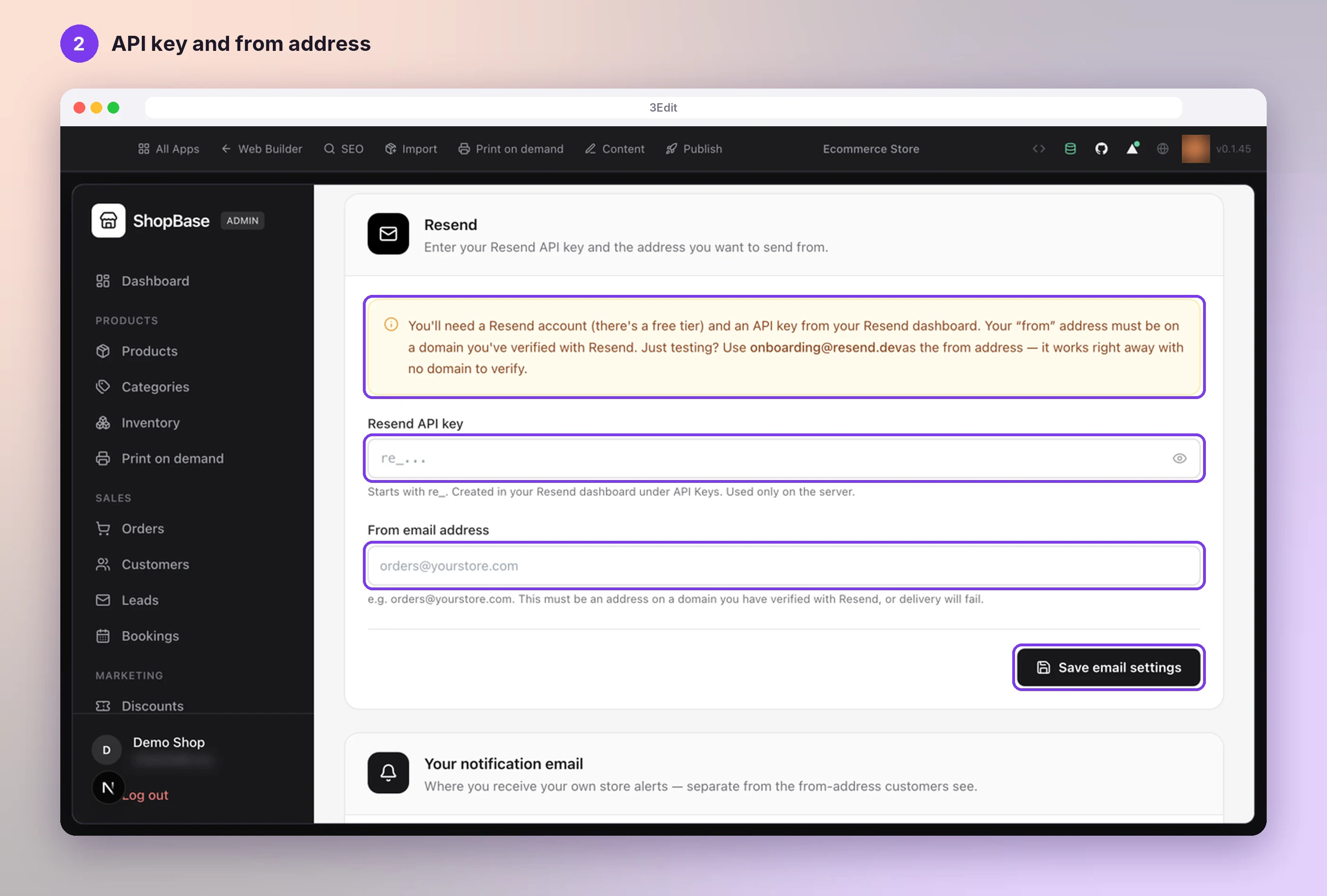
In the Resend card:
- paste your Resend API key (it starts with re_);
- enter your From email address, for example orders@yourstore.com, on the domain you verified with Resend;
- press Save email settings. You see that Resend is now your active email method.
- Just testing? Use onboarding@resend.dev as the from address. It works right away, with no domain to verify.
Choose where your alerts go
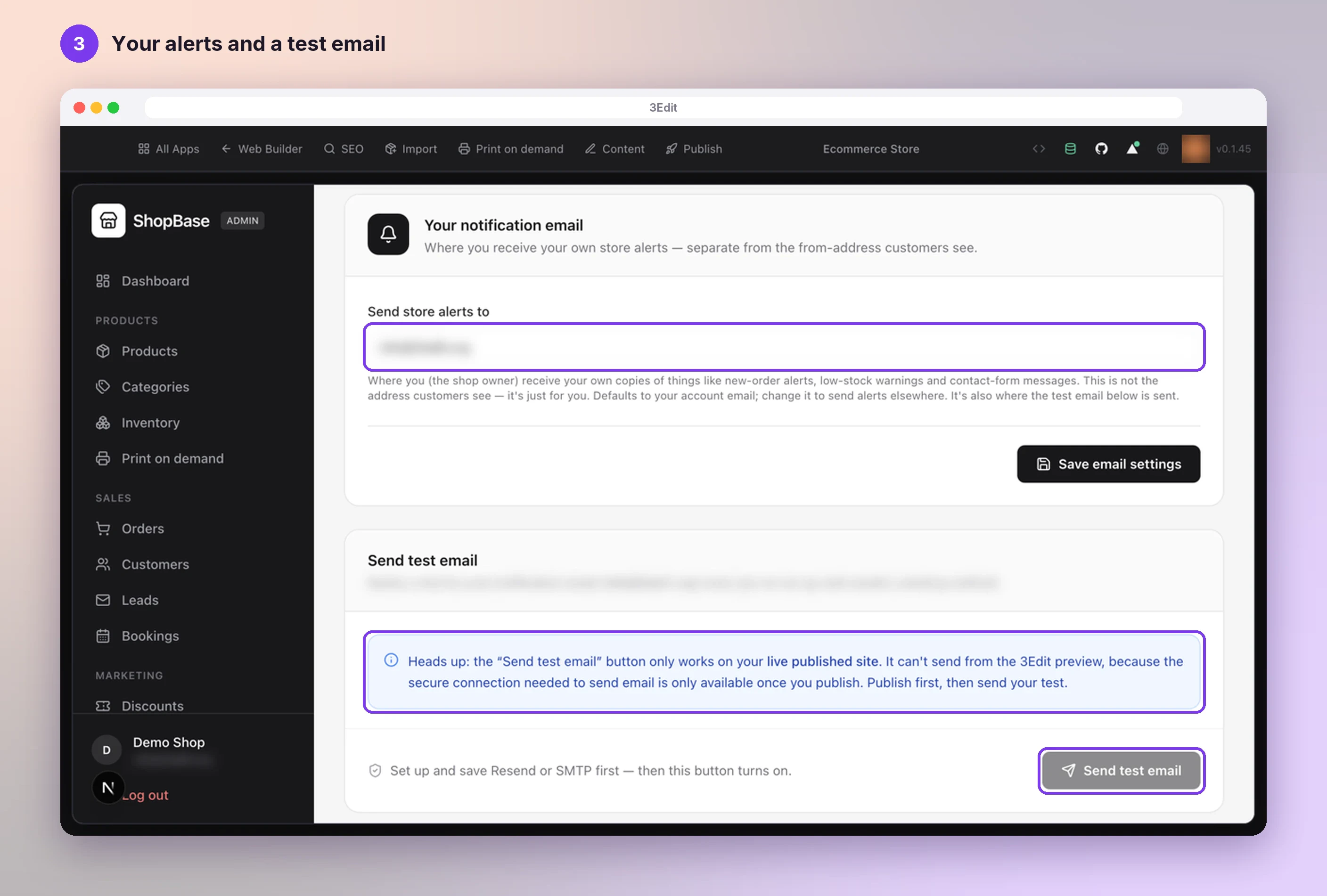
Under Your notification email, Send store alerts to is where your new-order alerts, stock alerts and contact-form messages arrive. It starts as your account email. Press Save email settings after a change.
Send a test email from your live store
Send test email works on your published store. After you publish your store, open Notifications on your live store and press Send test email to see it arrive in your inbox.
Using your own email server instead
Prefer the email service you already use? On the same Notifications page, choose Your own SMTP server under Active sending method, fill in the SMTP details your email provider gives you and save them. Your provider’s help pages list these details for their service.
Then choose where your alerts go and send a test email from your live store, exactly as above.
Good to know
- Before you email a real customer list, add your domain’s SPF, DKIM and DMARC records as Resend shows you. They help your emails land in the inbox.
- You can switch between Resend and your own SMTP server at any time on the Notifications page.
Helpful links
Next: Connect Printful.
- Connect PrintfulSell T-shirts, hoodies, mugs and more without holding any stock. Printful prints and ships every order, and 3Edit connects your store to it in about five minutes.Next guide
- Set up payments with StripeChoose your currency, paste your two Stripe keys and you are ready to take card payments. 3Edit sets up the rest when you publish.Read the guide
- Set up your print on demand store, step by stepThe hands-on setup tutorial: nine steps with screenshots, from your 3Edit account to Printful, your first product and your live store.Read the guide
Start vibe coding today.
Download 3Edit for Mac or Windows and build your first professional website in minutes.