 EDIT
EDIT Guide 7 of 9
Connect Printful to your store.
Sell T-shirts, hoodies, mugs and more without holding any stock. Printful prints and ships every order, and 3Edit connects your store to it in about five minutes.
About 5 minutesLast updated
On this page
What you need
Printful prints and ships every order for you. 3Edit connects your store to Printful, designs products with AI and lists them in your shop for you. You connect it in the 3Edit preview, then once more from your live store after you publish, so tracking numbers reach your orders automatically.
- A 3Edit store built from the Ecommerce starter kit
- An email address for your free Printful account
- A payment card for Printful. Printful charges you only when a customer orders, for printing and shipping.
- You do not need to create any products in Printful. 3Edit does that for you.
Create your free Printful account
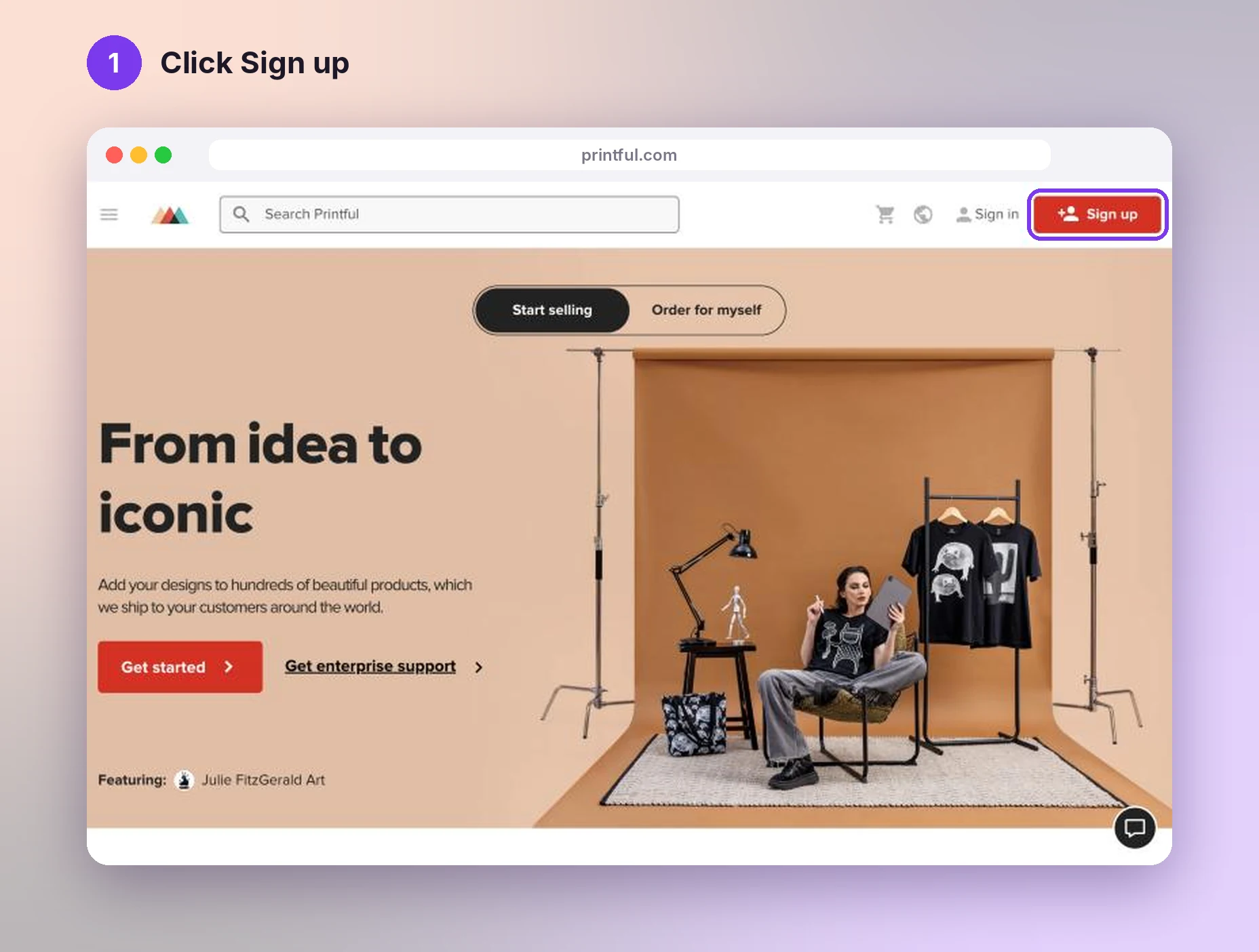
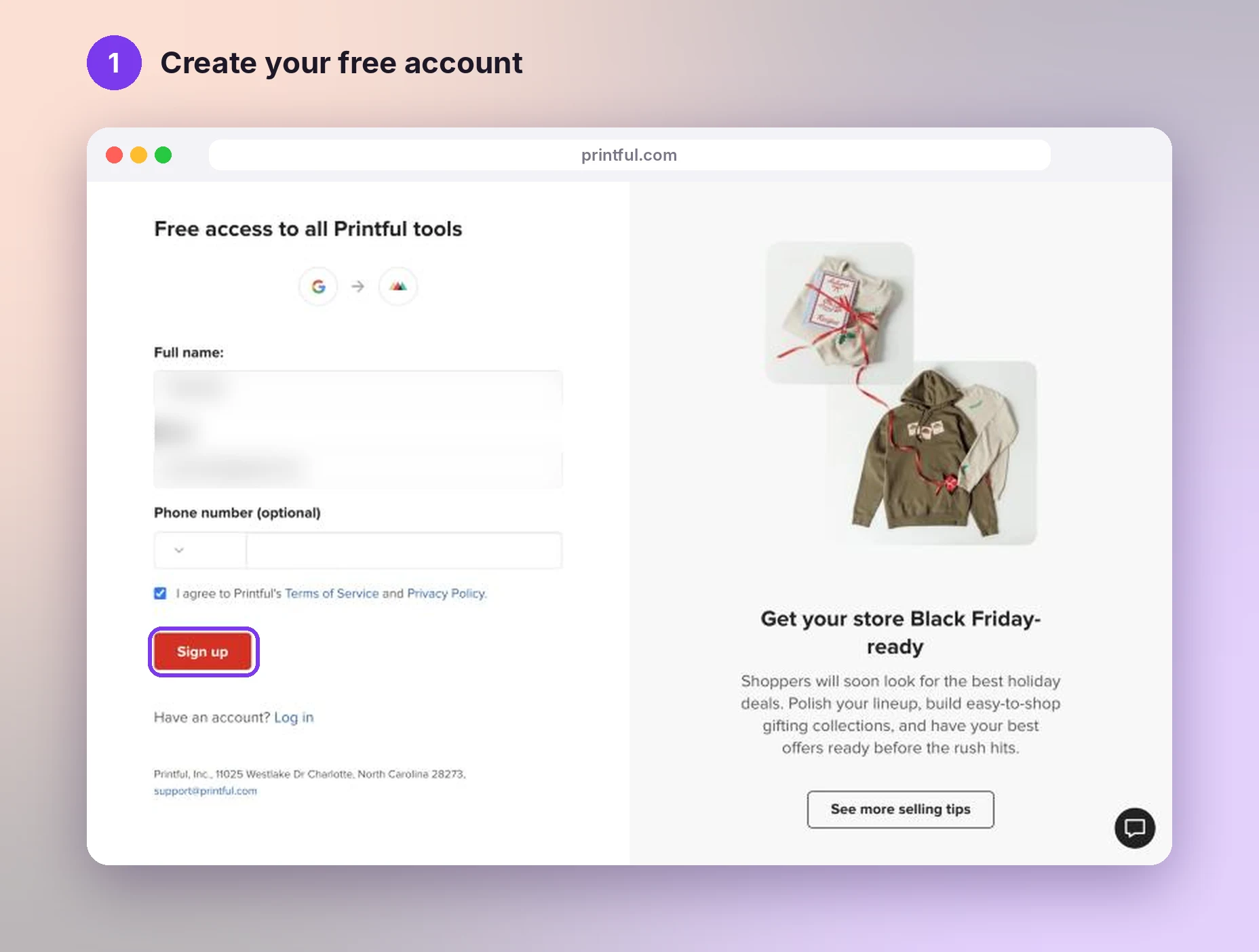
Go to printful.com and click Sign up. Printful asks a few quick questions about your business, and any answers are fine. Then click Sign up to create your free account.
Tip: use your business email, so the account belongs to your business.
Add a store with Connect via API
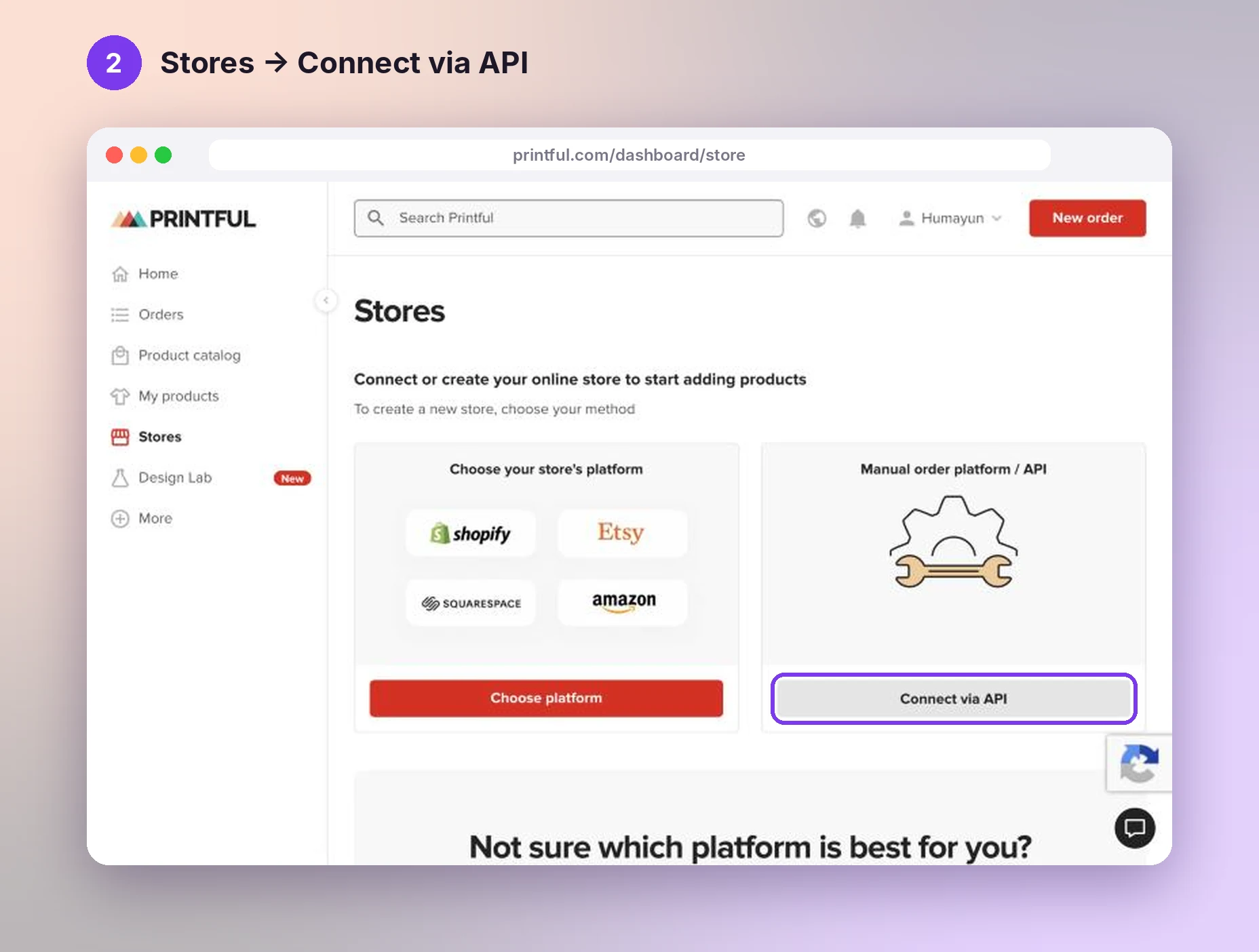
In your Printful dashboard, open Stores in the left menu, or go to printful.com/dashboard/store. Under Manual order platform / API, click Connect via API.
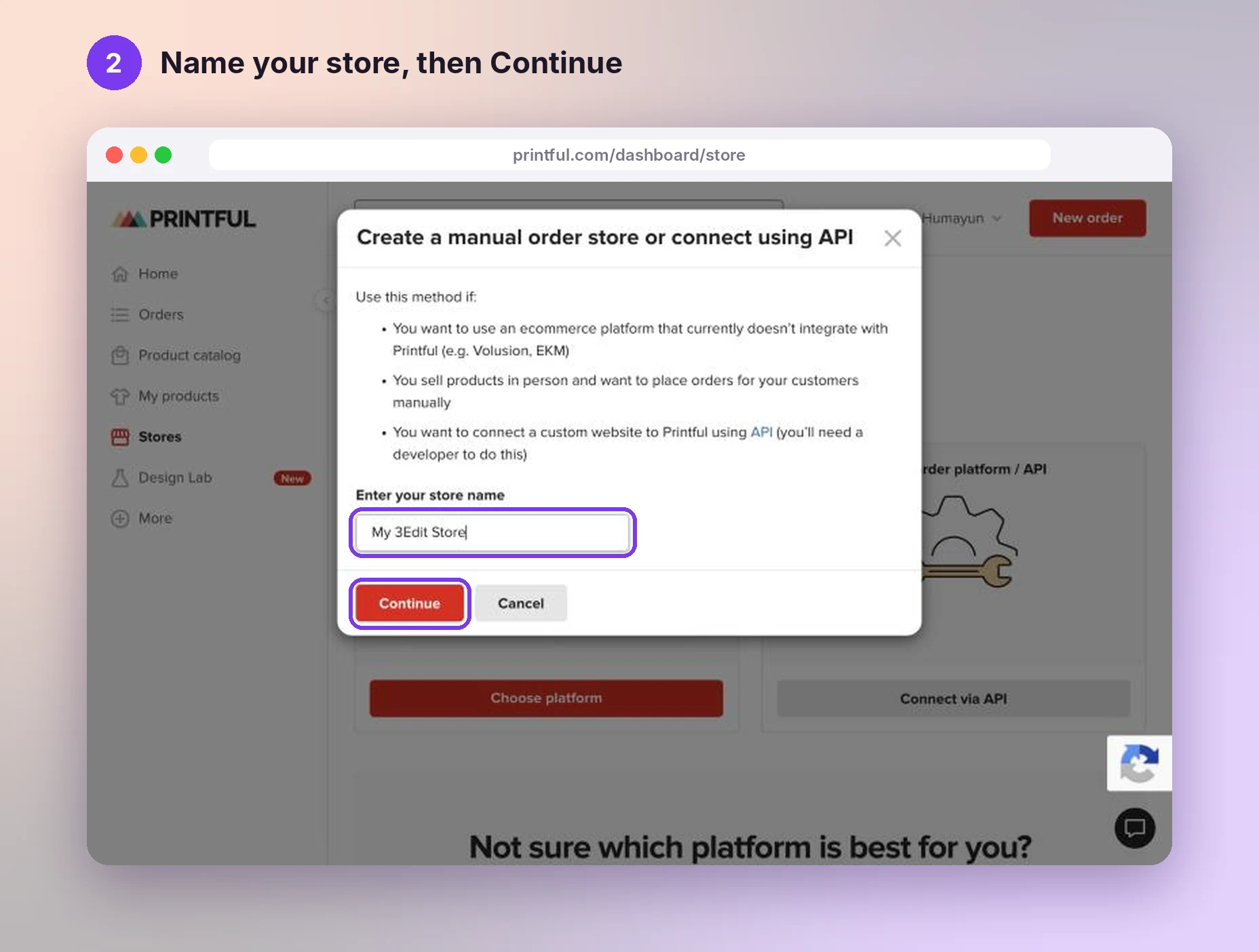
Give your store a name, for example your shop’s name, and click Continue. Printful then shows your new store and suggests creating a product. You can skip that: 3Edit creates and lists your products for you.
Create your private token
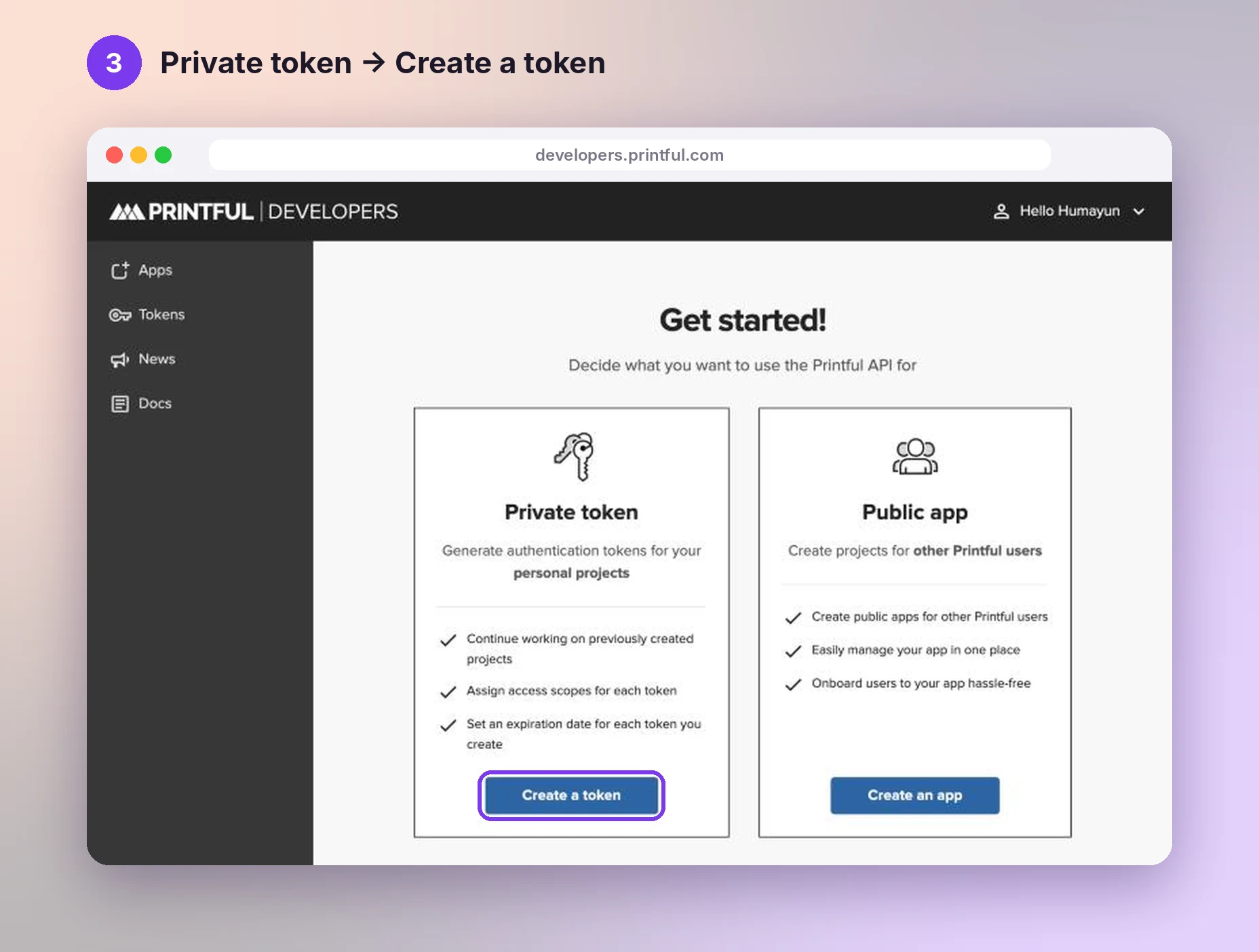
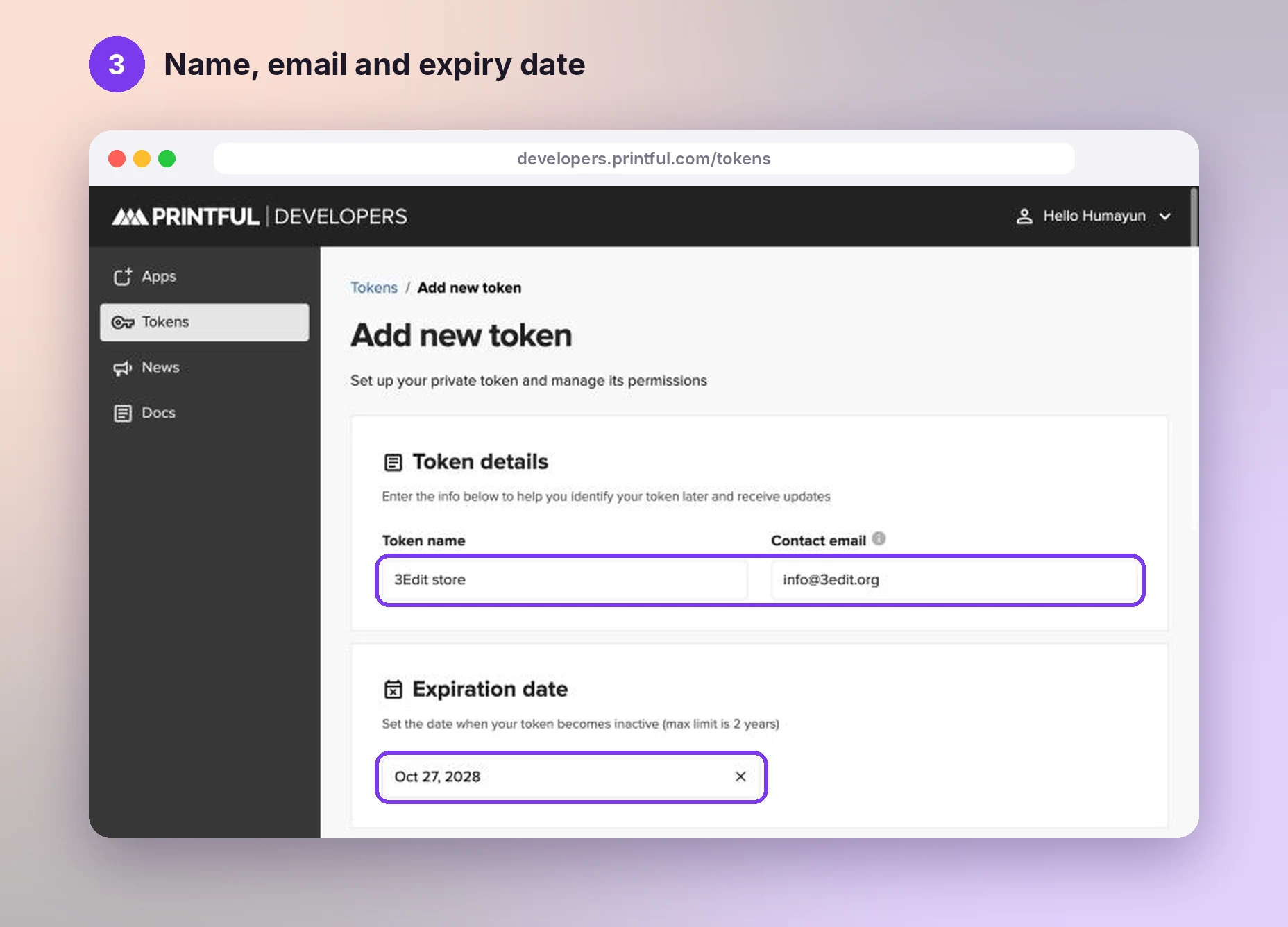
Your private token is the key that lets your store talk to Printful. Go to developers.printful.com and click Sign in to Printful (you are signed in automatically). Under Private token, click Create a token, and fill in:
- Token name: for example “3Edit store”;
- Contact email: your email;
- Expiration date: the latest date allowed. You can create a new token any time later.
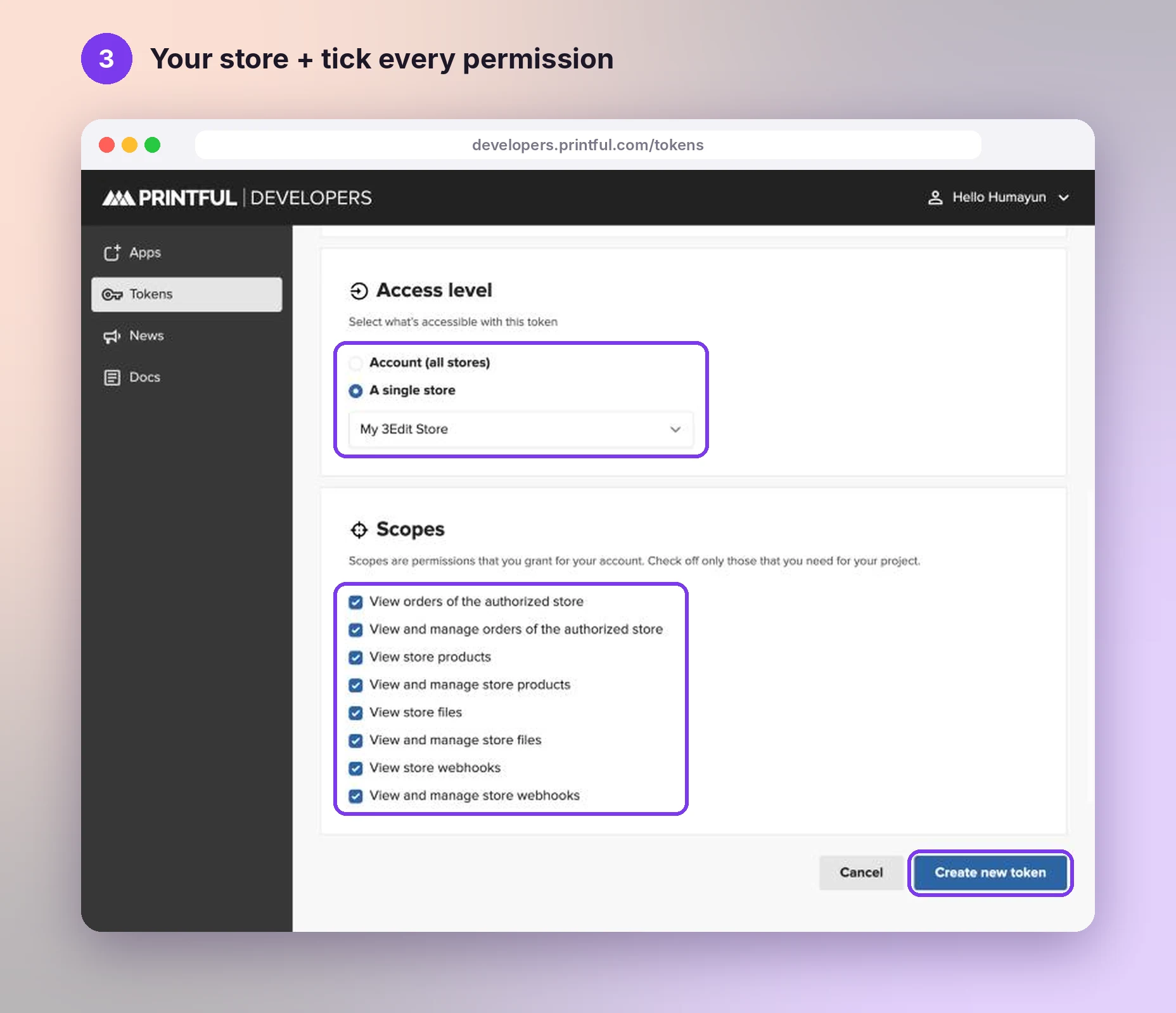
- Under Access level, choose A single store and pick the store you made in step 2. Under Scopes, tick every box: 3Edit uses them all to import products, send orders, upload designs and keep everything in sync. Then click Create new token.
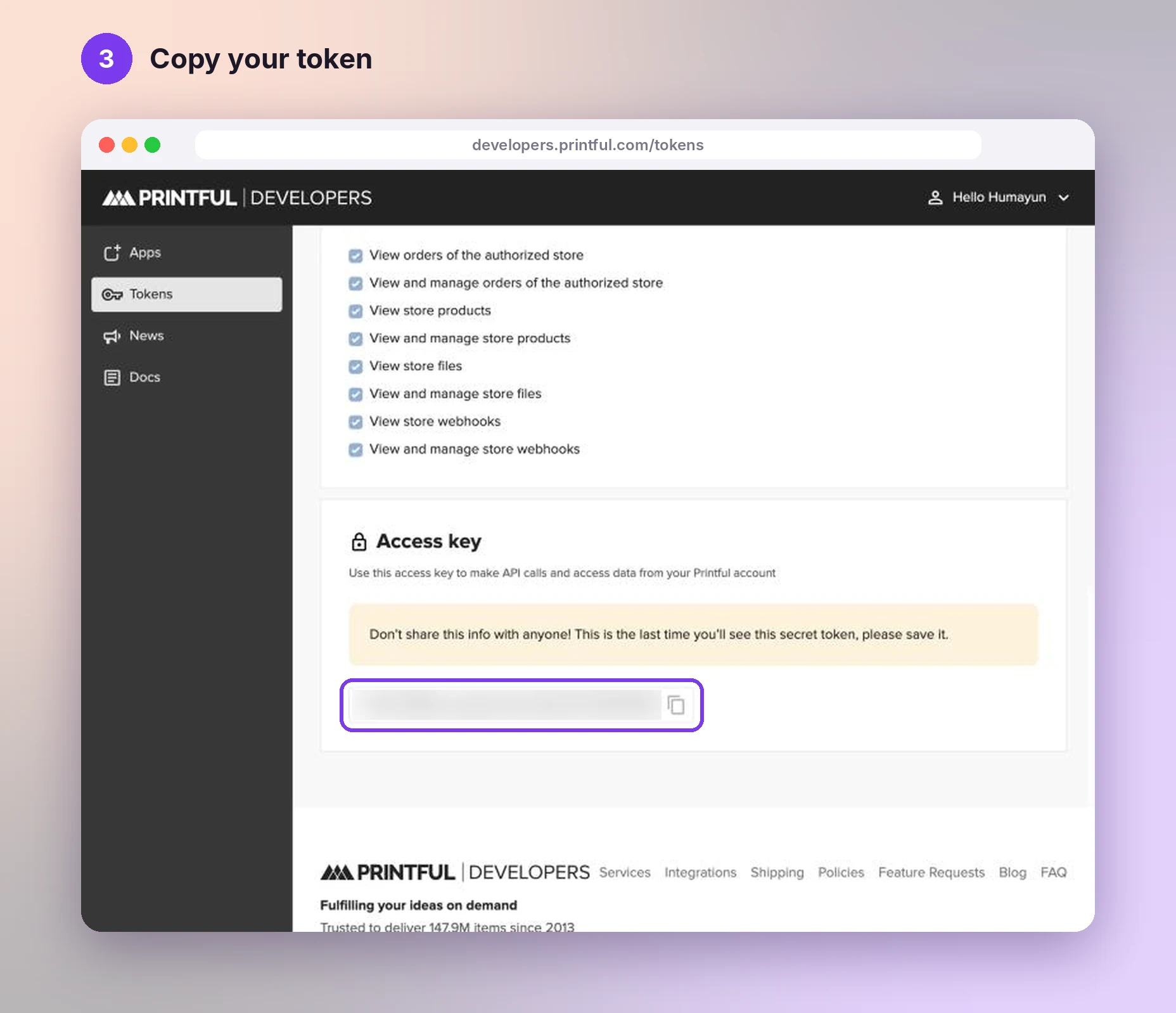
- Printful shows your token only once. Click the copy icon and keep it somewhere safe until step 5. Keep it private: anyone with it can use your Printful store.
Add a billing card in Printful
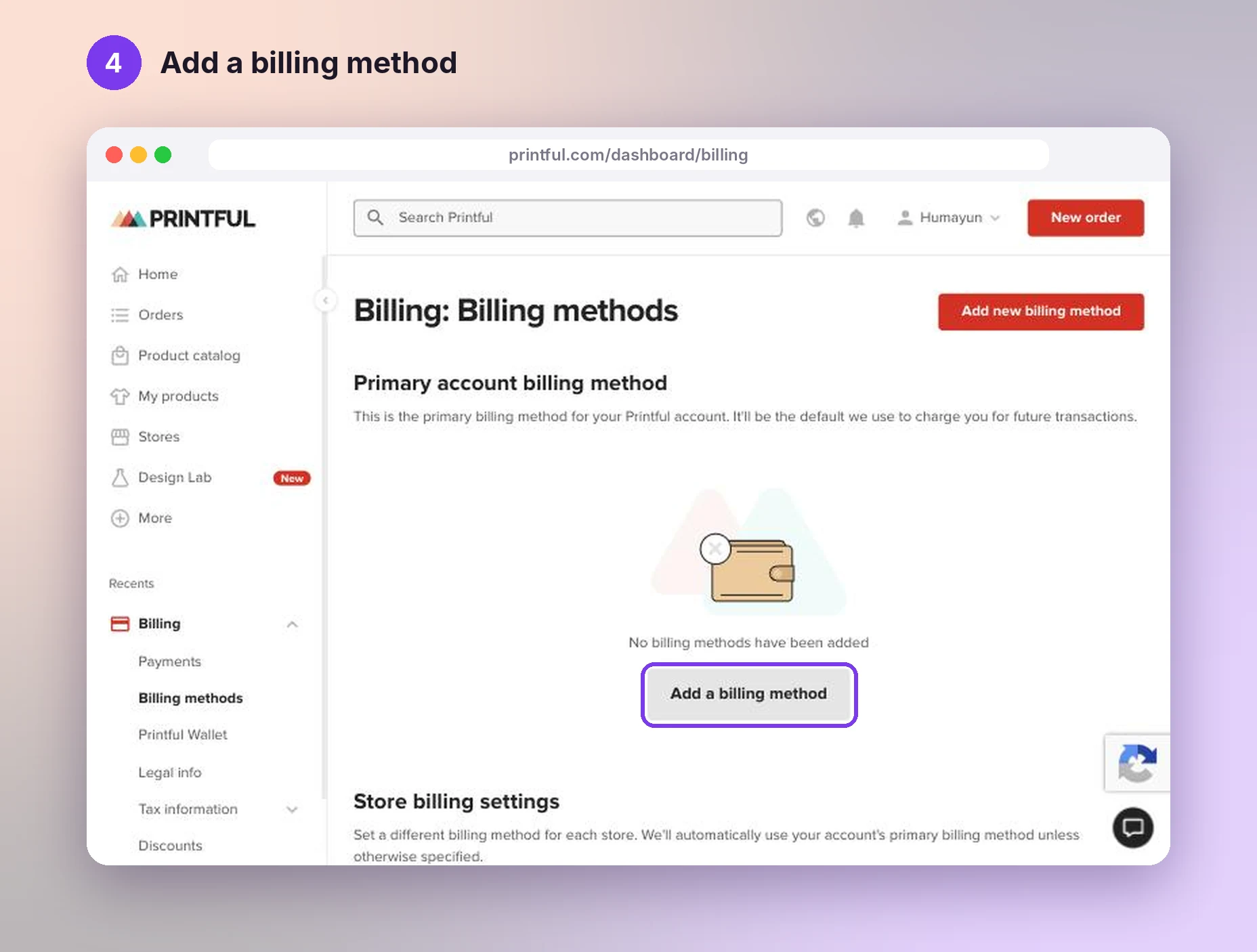
This is the step most people forget. Printful needs a card on file to print and ship your orders. Go to Billing → Billing methods, or printful.com/dashboard/billing/billing-methods, and click Add a billing method.
How the money works: your customer pays you in your 3Edit store. Printful then charges your card only for the product and shipping cost of that order. The difference is your profit, before payment fees.
Paste your token into 3Edit
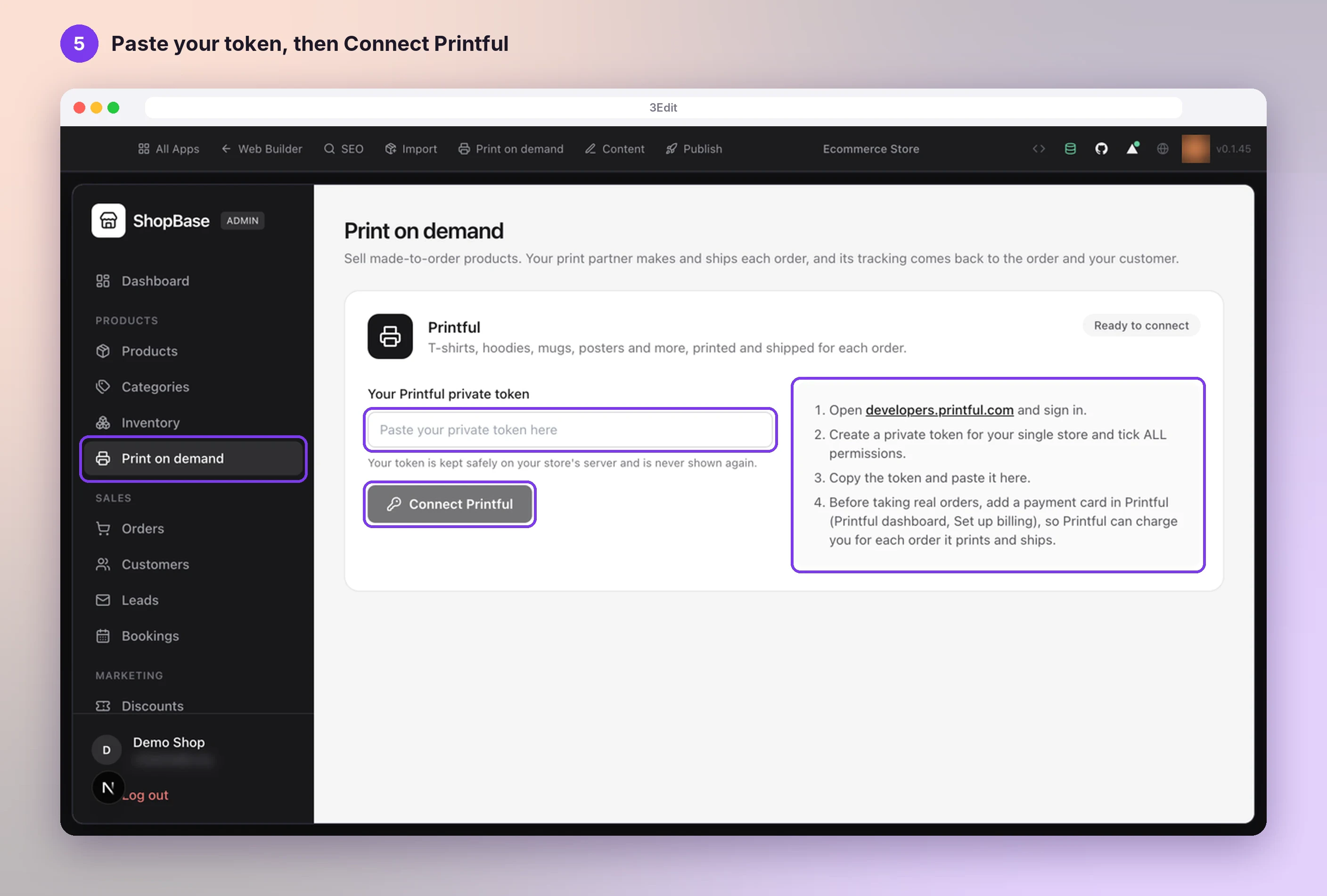
In 3Edit, open your store and sign in to your store admin. In the sidebar, under Products, open Print on demand.
Paste your token into Your Printful private token and press Connect Printful. Your token is kept safely on your store’s server and is never shown again.
In the 3Edit preview, 3Edit checks your token and tells you it works. After you publish your store, connect once more from your live store’s Print on demand page, so tracking numbers reach your orders automatically.
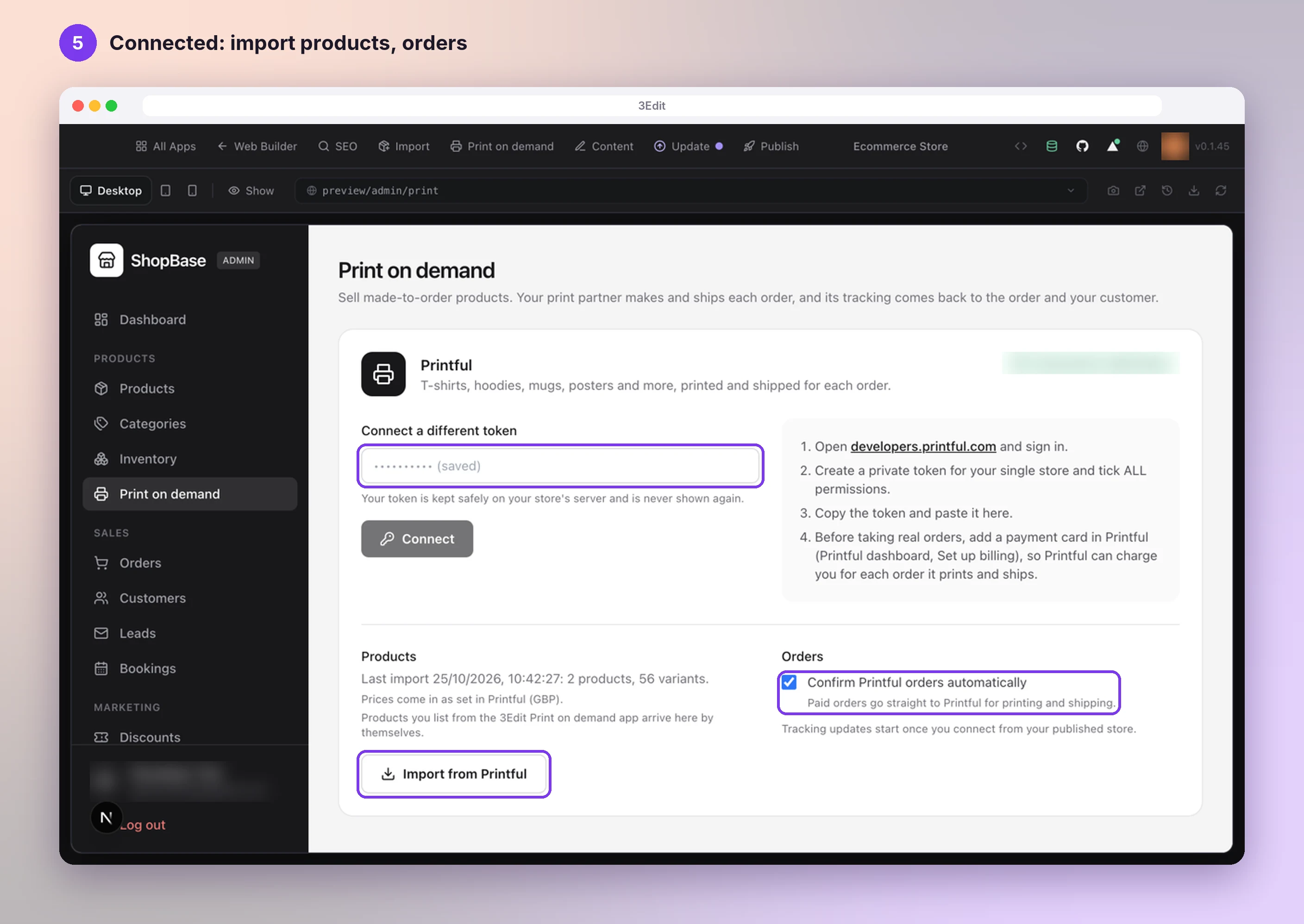
Once connected, the same page shows Import from Printful for products you already have in Printful, and Confirm Printful orders automatically, which is on by default: paid orders go straight to Printful for printing and shipping.
What happens next
- Design and list products with AI. Open Print on demand in 3Edit, describe what you want, pick your favourite design and list it. It appears in your shop with a description and SEO, ready to sell. See Create products with the Print on demand app.
- Orders go to Printful automatically. When a customer pays, the order is sent to Printful to be printed and shipped. You can follow its status in your store admin.
- Prefer Printful’s own designer? Products you create in Printful can be imported into your shop as well.
Your questions
Yes, creating an account is free. You pay Printful only for the products and shipping of orders your customers place.
No. 3Edit designs and lists products for you. You connect your account in the 3Edit preview, then once more from your live store’s Print on demand page after you publish, so tracking numbers reach your orders automatically.
So 3Edit can import products, send orders, upload your designs and keep stock and order status in sync. With fewer permissions, some features would stop with an error later.
Tokens expire on the date you chose. Create a new one as in step 3 and paste it into 3Edit again.
Printful ships to most countries. Your store shows Printful’s live shipping price at checkout, and lets the customer know before payment if an item cannot be delivered to their address.
Next: Create products with the Print on demand app.
- Create products with the Print on demand appPick a product, describe your idea and let the AI assistant design it with you. See it on real mockups, set your price and list it in your shop in one click.Next guide
- Set up your store emailsYour store sends order confirmations, shipping updates and your own new-order alerts. Set them up with Resend, or with your own email server.Read the guide
- Set up your print on demand store, step by stepThe hands-on setup tutorial: nine steps with screenshots, from your 3Edit account to Printful, your first product and your live store.Read the guide
Start vibe coding today.
Download 3Edit for Mac or Windows and build your first professional website in minutes.