 EDIT
EDIT Guide 9 of 9
Publish your store. You’re live.
Publish your store on 3Edit Cloud or your own Vercel in about a minute, then finish payments, emails and Printful on your live store.
About 2 minutesLast updated
On this page
Open Publish and choose your address
Press Publish in the top bar to open Publish your site. Under Where to publish, choose 3Edit Cloud, which is included in your plan.
Type Your address. The line below shows it, for example “Your site will be live at mystore.3edit.net”.
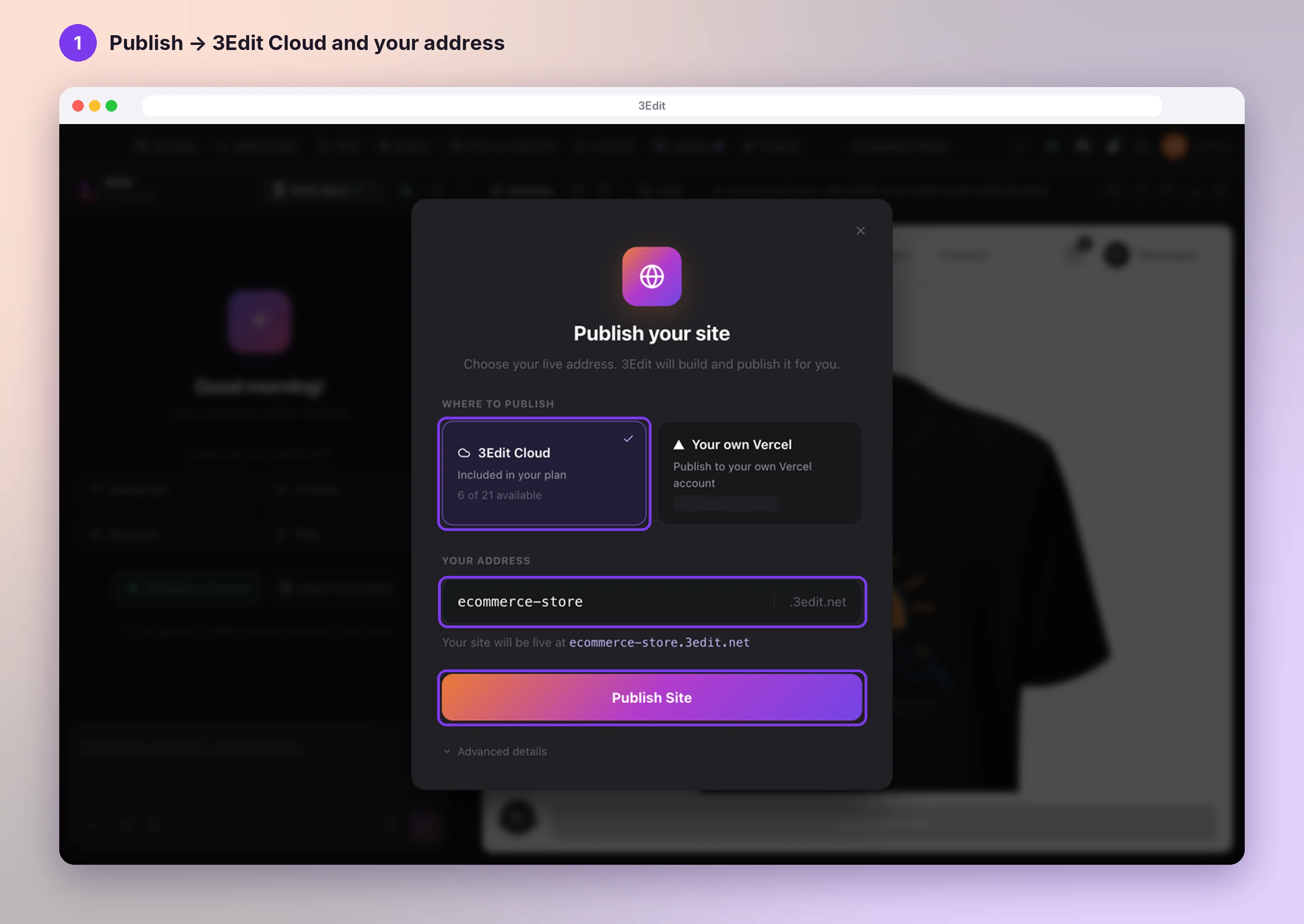
Or publish to your own Vercel
Prefer your own hosting? Choose Your own Vercel. Connect your Vercel account once, then publish with one click; Vercel gives your address. New to Vercel? See Vercel: getting started.
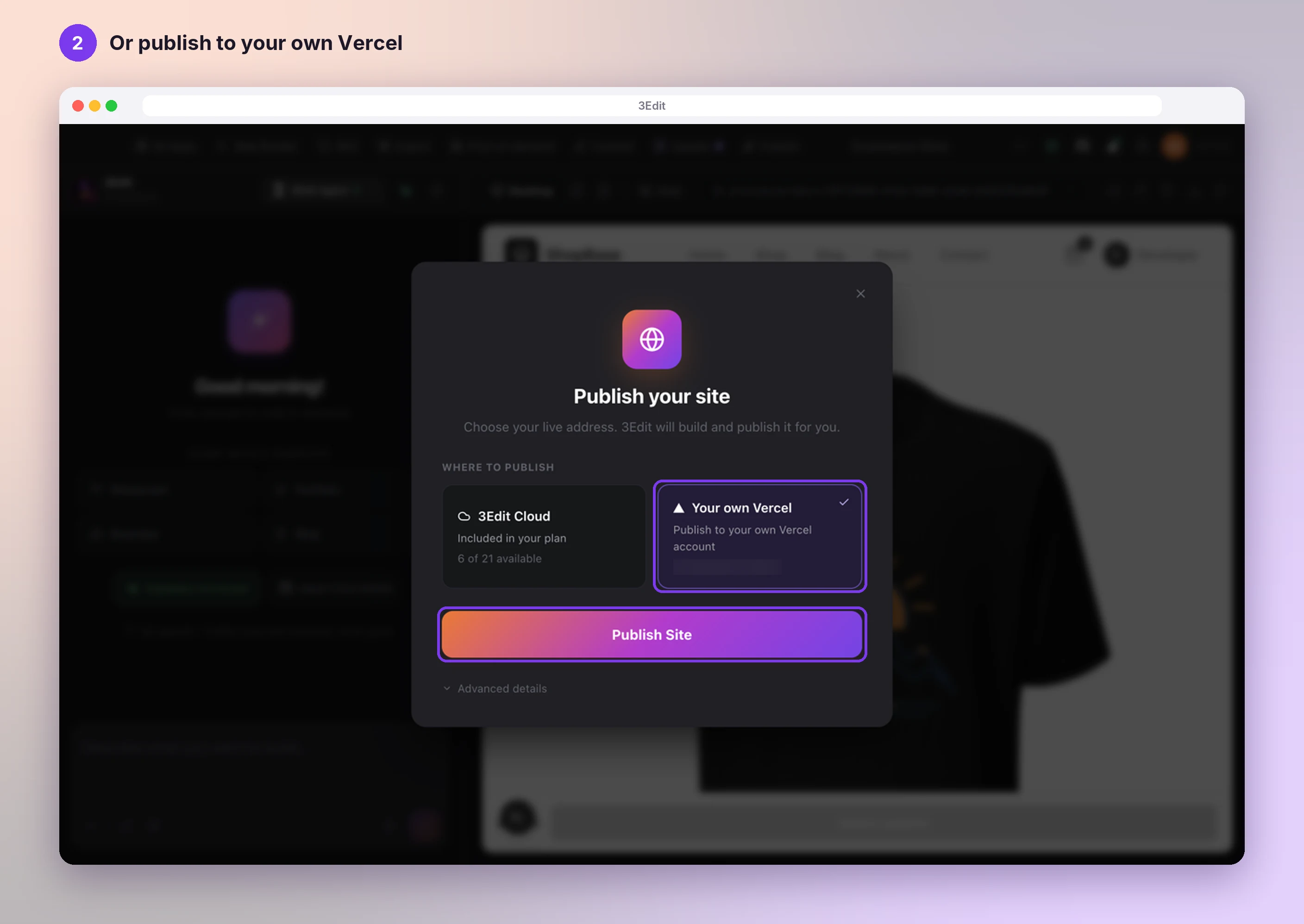
Publish
Press Publish Site. 3Edit prepares your site, uploads it and connects your live address; most sites publish in under a minute. You then see Your site is live, with Copy URL and Visit Site.
Want your own domain? Add it afterwards with Custom Domain.
Finish on your live store
That’s it: your store is live and ready for its first order.
- Payments: your Stripe webhook is created automatically when you publish. See Set up payments with Stripe.
- Emails: open Notifications on your live store and press Send test email. See Set up your store emails.
- Printful: connect your Printful token once more from your live store’s Print on demand page, so tracking reaches your orders. See Connect Printful.
Helpful links
More guides.
Your store is live. Here is where to go next, or see every guide.
- Set up your print on demand store, step by stepThe hands-on setup tutorial: nine steps with screenshots, from your 3Edit account to Printful, your first product and your live store.Read the guide
- Create products with the Print on demand appPick a product, describe your idea and let the AI assistant design it with you. See it on real mockups, set your price and list it in your shop in one click.Read the guide
- Connect PrintfulSell T-shirts, hoodies, mugs and more without holding any stock. Printful prints and ships every order, and 3Edit connects your store to it in about five minutes.Read the guide
Start vibe coding today.
Download 3Edit for Mac or Windows and build your first professional website in minutes.