 EDIT
 Guide 8 of 11
Connect Printify to your 3Edit store.
Prefer Printify? Choose from its products and print providers, and Printify prints and ships every order. 3Edit connects your store to it with one token.
Last updated
On this page
What you need
Printify prints and ships every order for you, from the print provider you choose. 3Edit connects your store to Printify and lists the products you make in your shop. You can use Printful, Printify or both, chosen for each product.
- A 3Edit store built from the Ecommerce starter kit
- A free Printify account
- A payment card for Printify billing, added before your first real order
Create your free Printify account
Create a free Printify account and follow Printify’s sign-up.
3Edit is a Printify partner. We may earn a small commission, at no extra cost to you.

Add an API shop, if you need one
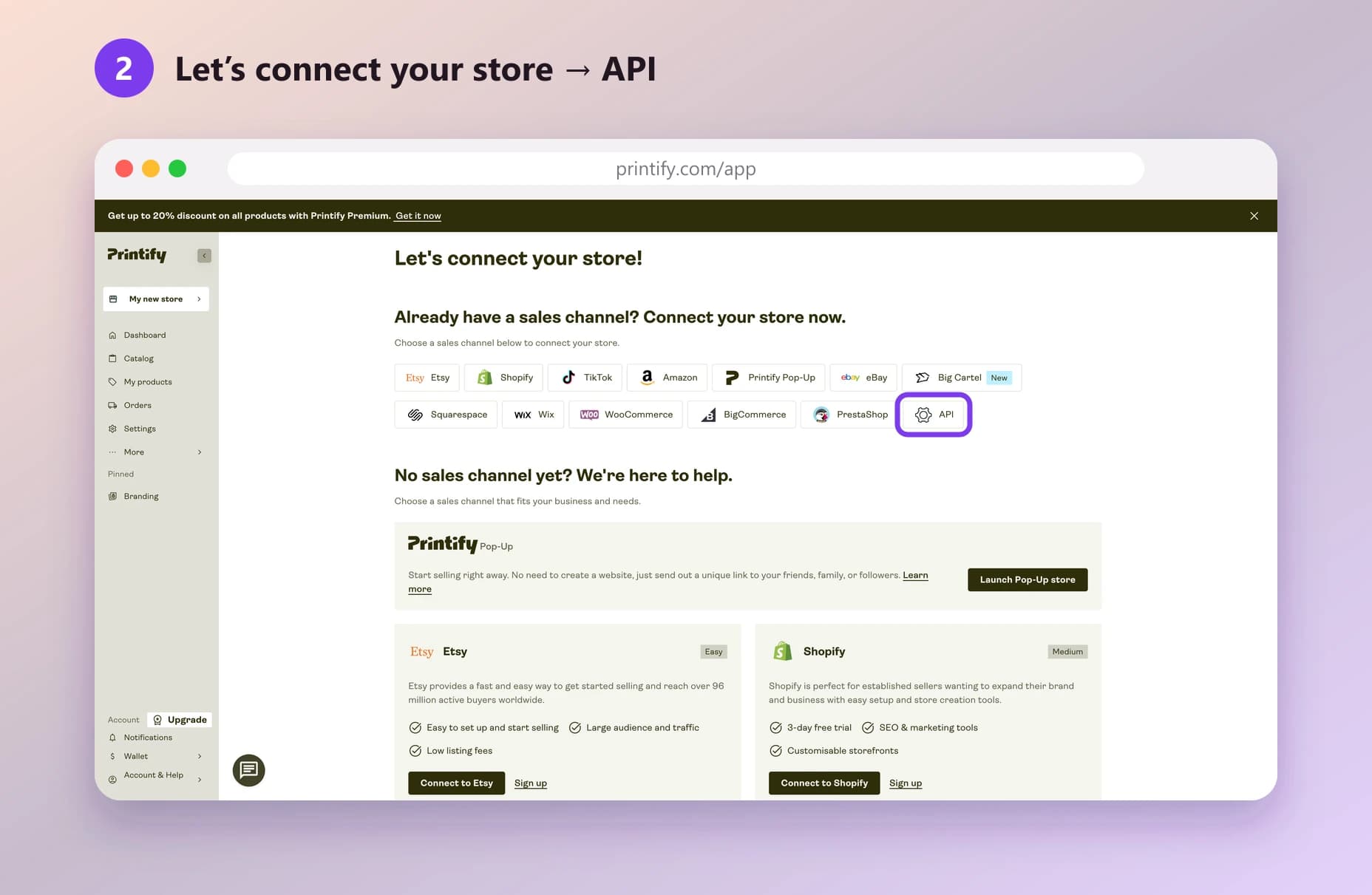
Your token connects to a shop in Printify. If you don’t have one for your 3Edit store yet, open the store menu at the top left and choose Add a new store, then choose API.
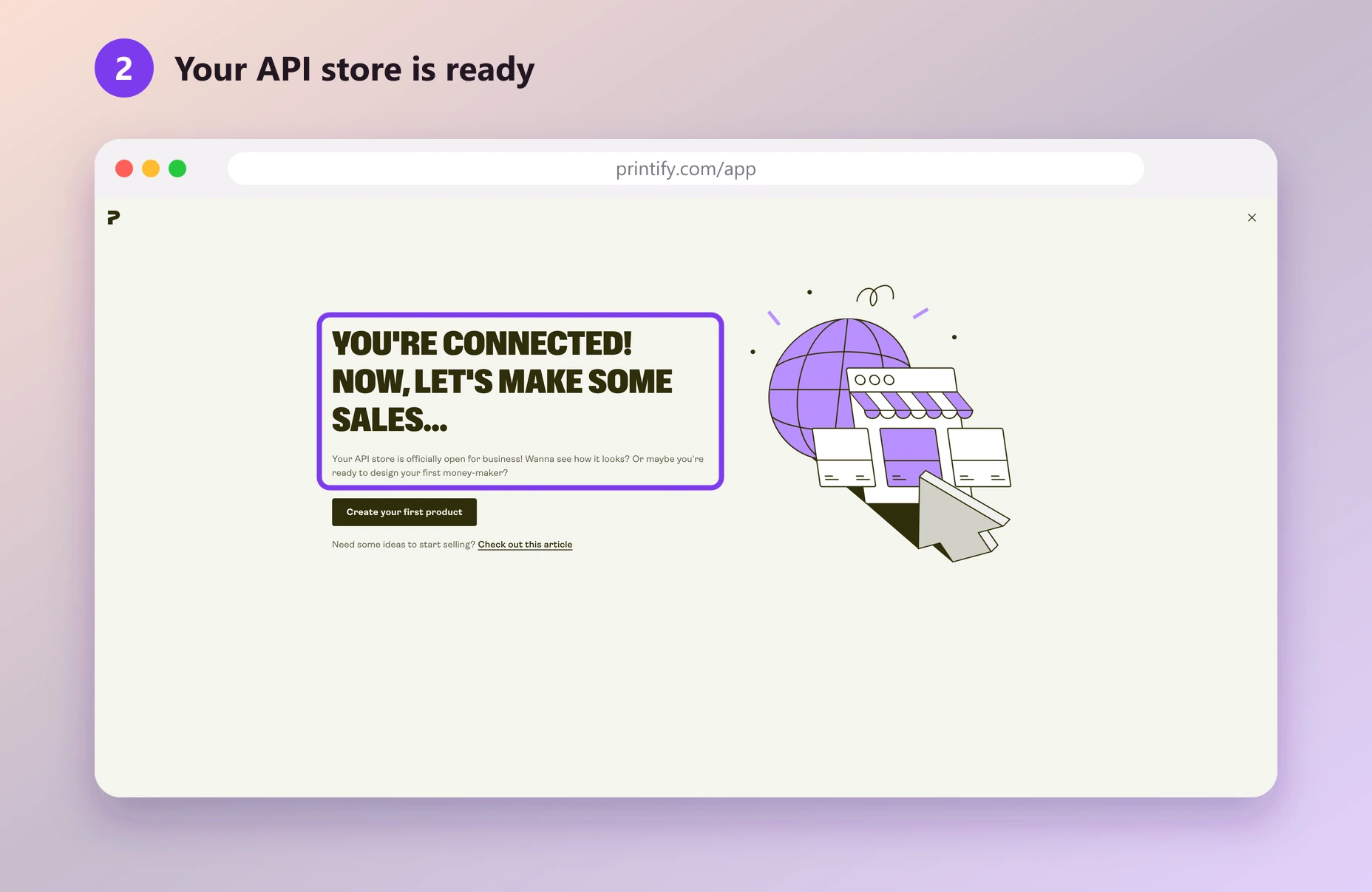
Printify then tells you your API store is open for business.

Generate your API token
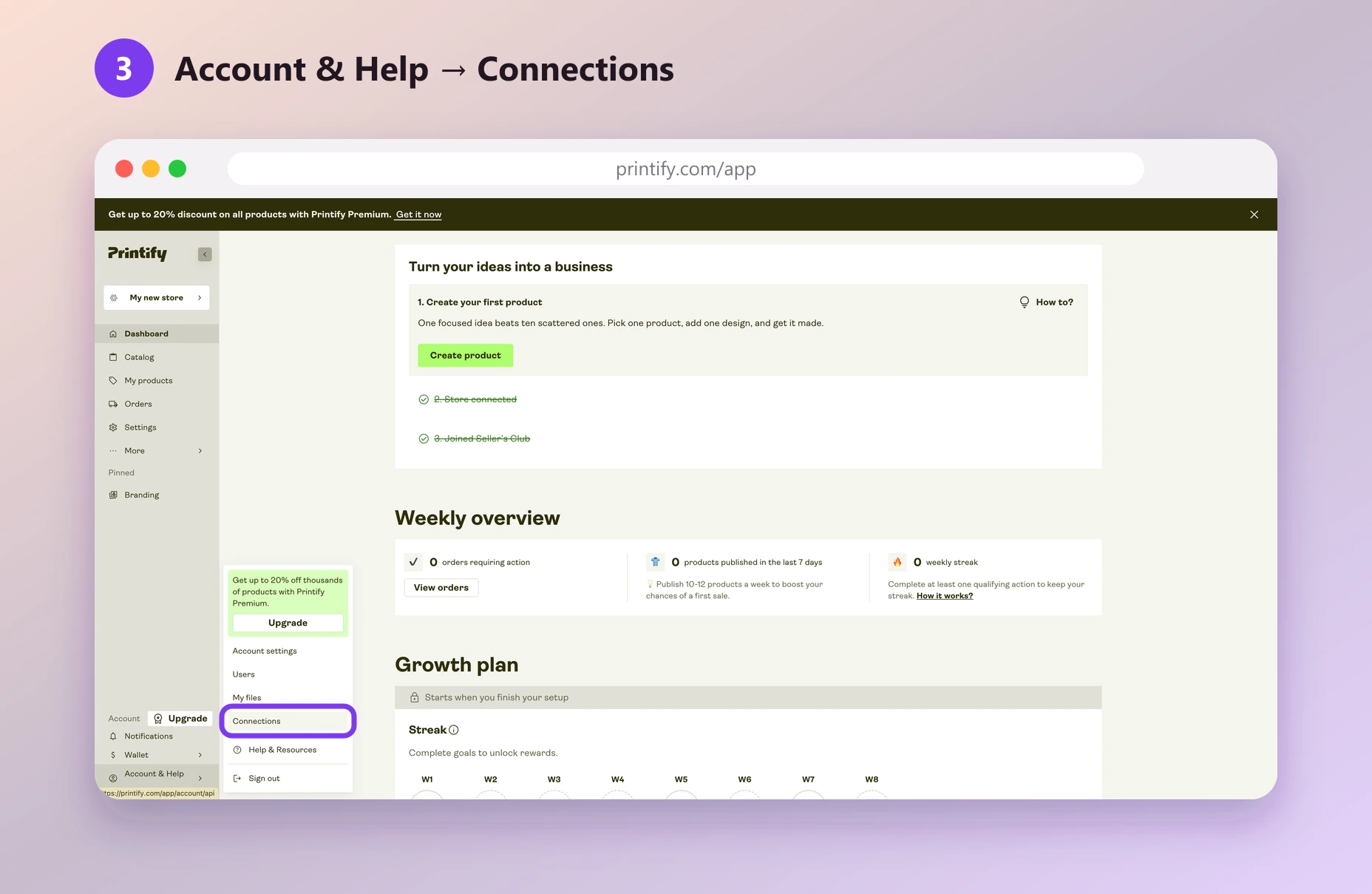
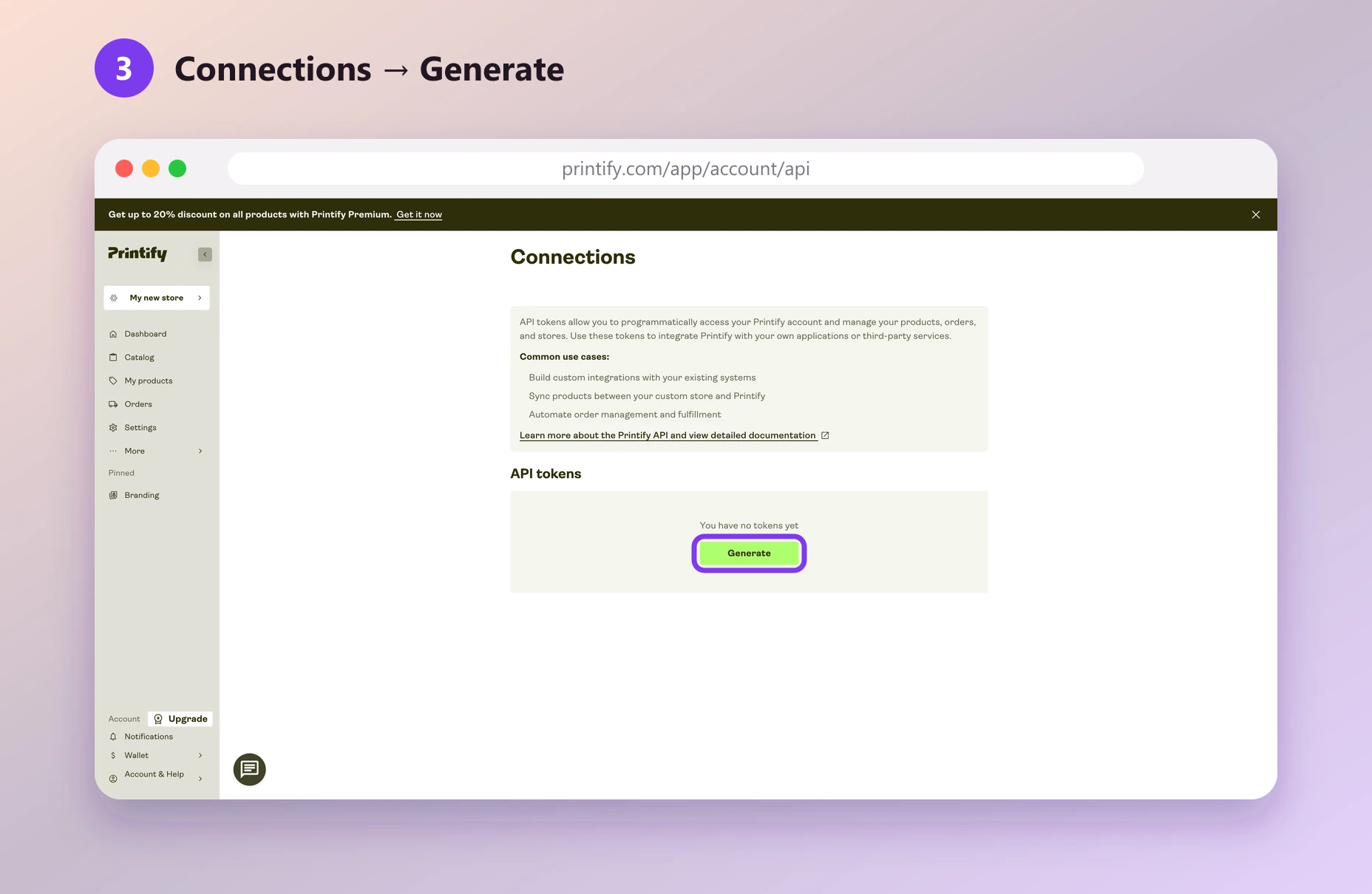
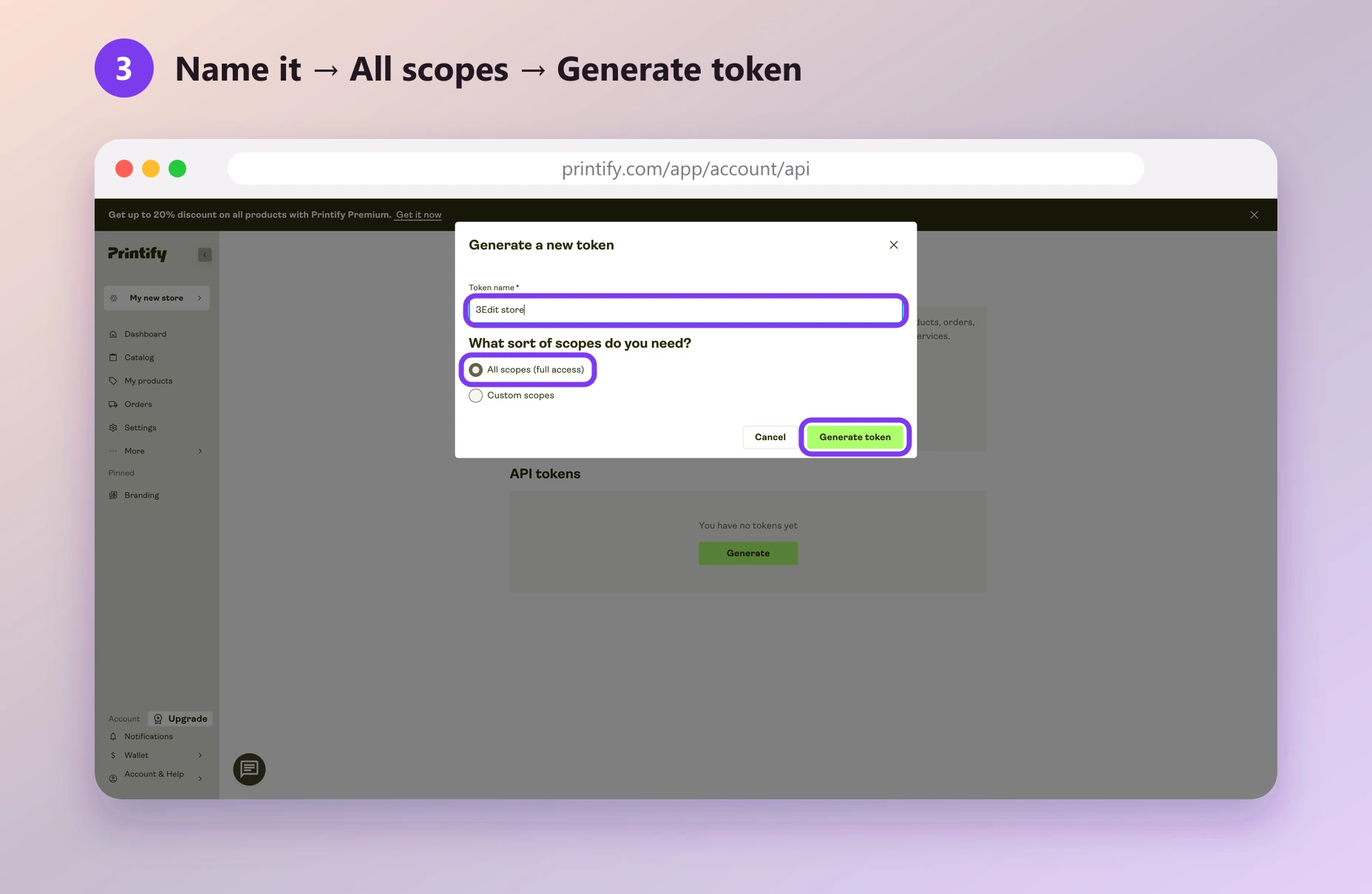
Your token is the key that lets your store talk to Printify. In Printify, open My Profile (Account & Help, at the bottom left), then Connections, and press Generate.
- Name the token, for example “3Edit store”.
- Choose All scopes (full access), so every permission is ticked, then press Generate token.
- Copy your token and keep it somewhere safe until step 4. Printify shows it only once. Keep it private: anyone with it can use your Printify account.
Paste your token into 3Edit
In 3Edit, open your store and press Admin Panel to sign in to your store admin, then open Print on demand.
Paste your token into the Printify card and press Connect Printify. The card then shows Connected with a green tick and your shop name.
Want to change it later? Disconnect removes the connection.
Get ready for real orders
Set up billing in Printify, so it can print and ship your orders: in Wallet, under Payments, add a credit or debit card.
Want to confirm each order yourself? In Printify, set order approval to Manual in your store settings, under Order settings. Orders then wait for you before they go to production.
In your store admin, Confirm Printify orders automatically sends paid orders straight to Printify for printing and shipping.
What happens next
- Create products in 3Edit. Open Print on demand, choose Printify, browse products and choose a print provider: each one shows its name and location. Place your design in the editor, set your price, make the mockups, choose colours and sizes, then press List it in my shop. See Create print on demand products in 3Edit.
- Your product goes live. It goes into your Printify store and your shop, with a product description and SEO.
- Already made products in Printify? Bring them in with Import from Printify in your store admin.
- Live shipping at checkout. Your store shows Printify’s shipping quote at checkout, in your store’s currency, converted with daily European Central Bank rates and rounded up. If a live quote isn’t available, your store’s own shipping rates are used, so checkout always works.
- Tracking. Once your store is published, tracking updates reach your orders and your customers.
- Sharp prints. See How to get the best print quality with 3Edit before you design.
Helpful links
- printify.comPrintify3Edit is a Printify partner. We may earn a small commission, at no extra cost to you.
- help.printify.comPrintify: generate an API token
- help.printify.comPrintify: set up payments
- help.printify.comPrintify: order approval settings
- help.printify.comPrintify: when you’re charged
Next: Create print on demand products in 3Edit.
- Create print on demand products in 3EditPick a product, describe your idea and let the AI assistant design it with you. See it on real mockups, set your price and list it in your shop in one click.Next guide
- Connect Printful to your 3Edit storeSell T-shirts, hoodies, mugs and more without holding any stock. Printful prints and ships every order, and 3Edit connects your store to it in about five minutes.Read the guide
- Set up your print on demand store in 3EditThe hands-on setup tutorial: nine steps with screenshots, from your 3Edit account to Printful, your first product and your live store.Read the guide
Questions people ask.
Yes. Creating a Printify account is free. Printify charges you for an order’s products and shipping once the order is sent to production.
Yes. Use Printful, Printify or both, chosen for each product.
Yes. In Printify, set order approval to Manual in your store’s order settings. Orders then wait for you to submit them before they go to production.
Printify tokens are valid for one year. Generate a new one as in step 3 and paste it into 3Edit again.
Start vibe coding today.
Download 3Edit for Mac or Windows and build your first professional website in minutes.