 EDIT
 Lesson 19 · Practice projects
Project: build an online store
A print on demand shop, from free starter kit to four products.
Follow a real build from our test run: a print on demand shop for dog lovers, started from the free Ecommerce starter kit, rebranded with one prompt, and stocked with four products from Printful and Printify.
About 8 minutes to readLast updated
On this page
The project: Paws & Prints
Paws & Prints is a practice business, made up for this lesson: a print on demand shop for dog lovers in the UK, selling T-shirts, mugs and tote bags. It was built for real in 3Edit on 19 November 2026 with a test account, and these were the results.
| Step | In our run |
|---|---|
| Start from the Ecommerce starter kit | Free |
| Connect our own Supabase | 31 seconds |
| Rebrand the store with one prompt | 5 minutes, 1 credit |
| Print on demand set-up and four products | About an hour, 7 credits |
Start from the free starter kit
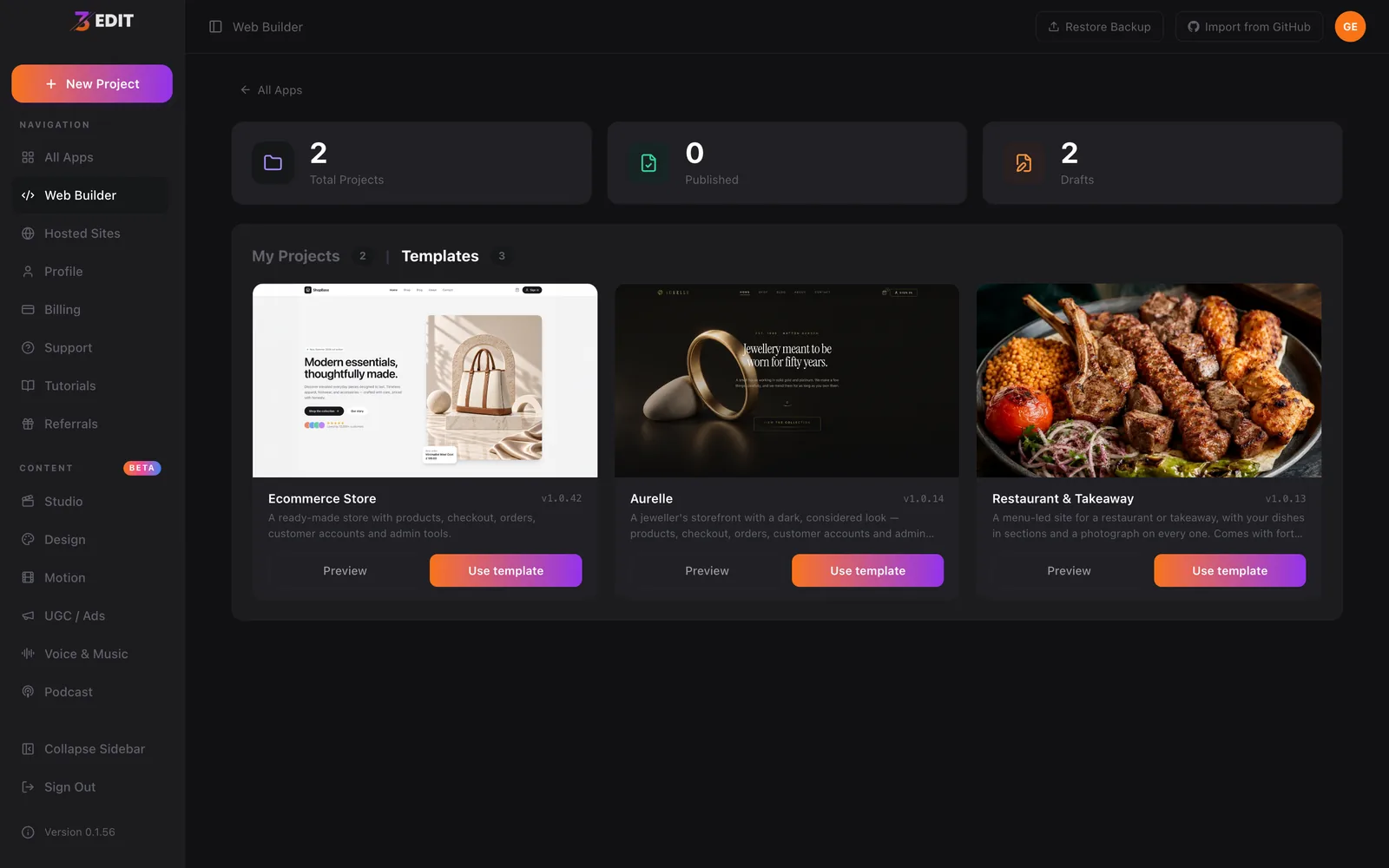
A store is a big build: products, cart, checkout, orders, customer accounts and an admin area. You don’t need to describe all of that. In the Web Builder, the Templates tab lists 3Edit’s starter kits, and Ecommerce Store is a ready-made store with products, checkout, orders, customer accounts and admin tools. 3Edit’s own starter kits are free with every plan.
We pressed Use template. The starter kit guide shows every click.
Connect it and look around
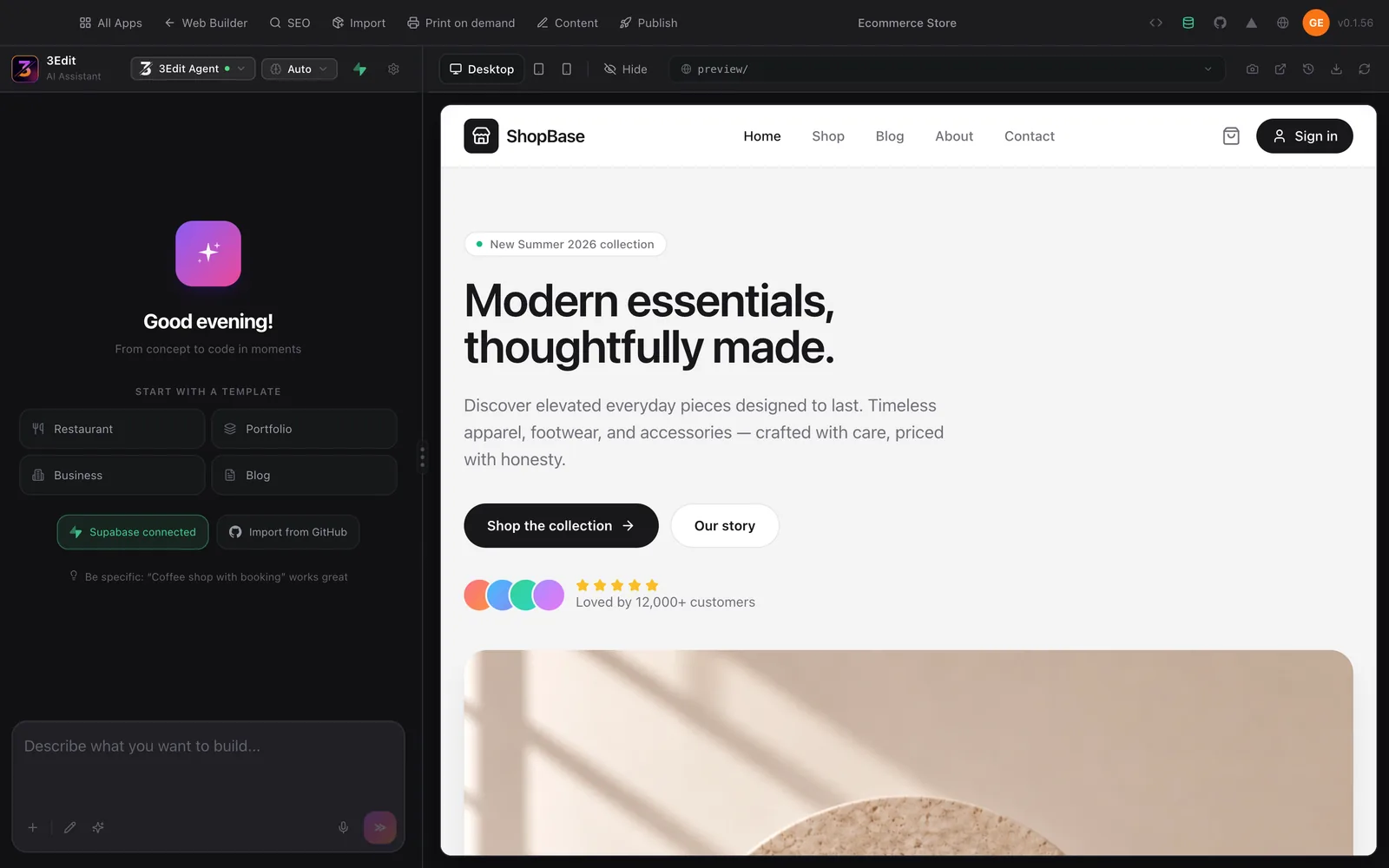
The store’s backend needs a database, so we connected our own Supabase. It took 31 seconds, and the store was running in the preview.
Look around before you change anything: the shop, the blog, the cart and the sign-in. Notice the sample words too. The starter store’s hero says “Loved by 12,000+ customers”, which is a placeholder, not a fact about your shop.
Rebrand it with one prompt
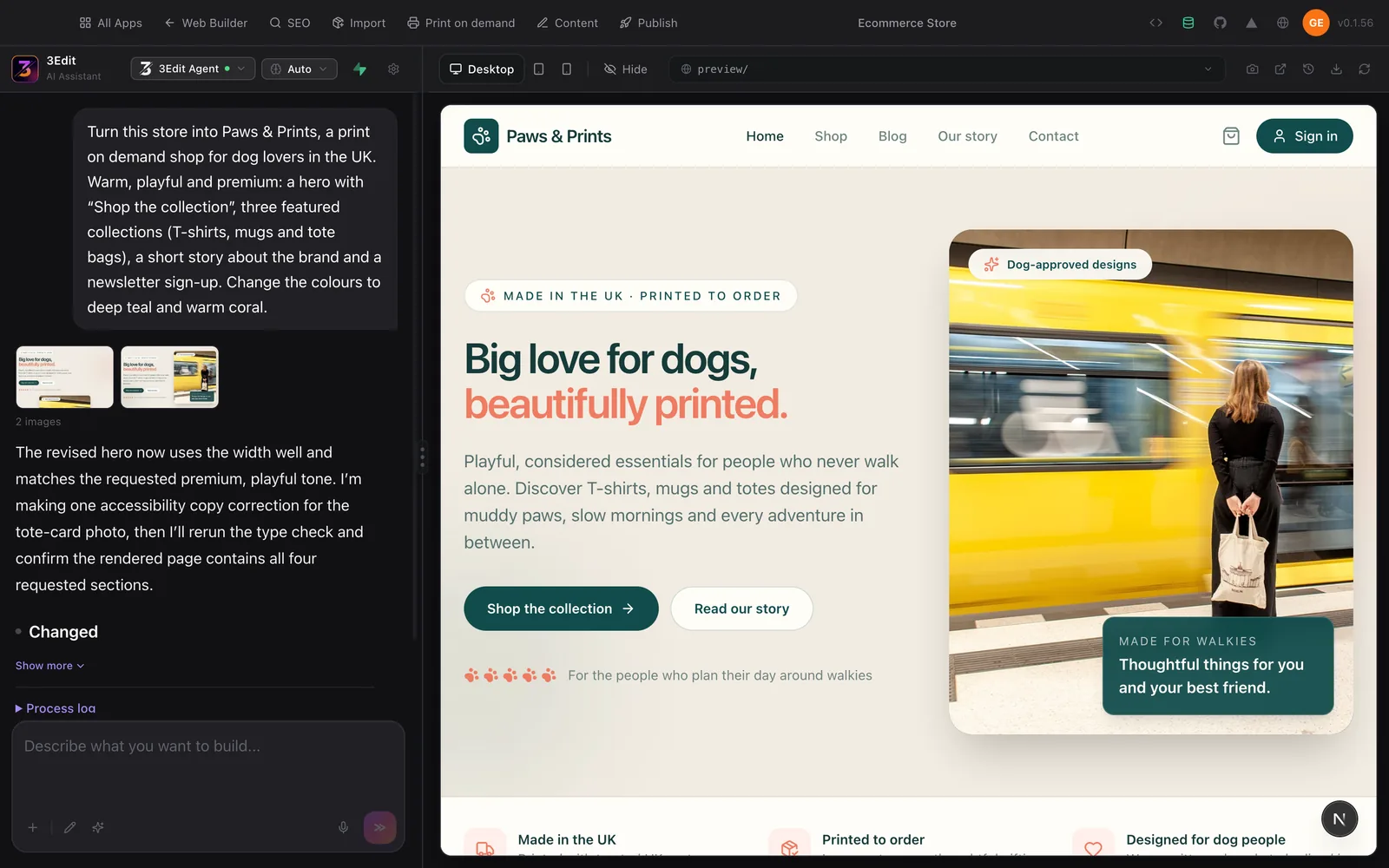
We used the “Make the store yours” prompt from lesson 26, word for word: the name, the audience, the feel, the sections and two colours. Five minutes and 1 credit later, the starter store was Paws & Prints, in deep teal and warm coral, headed “Big love for dogs, beautifully printed.”
Read the new words as carefully as you would a contract. The rebrand added the line “Made in the UK · Printed to order”. That’s only right if your print partner really prints your products in the UK, so check it against your partner’s real production before you publish, or change it.
Connect your print partner
Print on demand set-up happens inside your store, in this order. Getting the order right is what makes it smooth.
- Create your account on the storeIn your store’s preview, press Sign in and create your own account. The first account created on a store becomes its admin.
- Open your store adminSign in, press Admin Panel, and under Products, open Print on demand.
- Paste your tokenPaste the token from your Printful or Printify account and connect.
- List your productsChoose products, add your designs and list them in your shop.
Why your account comes first
The Print on demand page lives in the store admin, and only an admin can open it. So create your own account on the store before anyone else does: that way the admin is you. The store admin guide shows how, and how to add more admins later by asking the chat.
In our run, the whole print on demand set-up took about an hour and 7 credits, and listed four products: three with Printful and one with Printify. The token itself comes from your print partner’s own website; the Printful guide and Printify guide show every click.
Check before you launch
- Every claim: where products are made, delivery times, customer numbers and reviews. Keep only what’s true for your shop.
- Checkout in test mode: connect Stripe with test keys first, as the Stripe guide shows, and place a test order.
- Delivery and returns: clear, honest and easy to find.
- On a phone: browse, add to the cart and check out at phone size. The testing guide has the full checklist.
Try it in 3Edit.
Start your store from the Ecommerce starter kit, as the guide shows, and rebrand it with the prompt in lesson 26. Then use these prompts, one at a time.
The businesses in these prompts are fictional practice examples. When you build for a real business, only ever show real reviews from real customers: invented reviews mislead customers and are against UK consumer law.
- 1Find the claims
List every claim on this store that a customer might rely on, such as where products are made, delivery times, returns, customer numbers and reviews, page by page, so I can check each one is true. Don’t change anything yet.
- 2Describe a product
Write a short, warm product description for a dog lover’s mug with the words “Walkies first, then coffee”, in the Paws & Prints voice. Don’t mention materials, delivery times or where it’s made.
- 3Delivery and returns
Add a clear delivery and returns page in plain English. Where I need to add my print partner’s real delivery times or my returns policy, mark the gap clearly so I can fill it in before launch.
Then create your account on the store, connect Printful or Printify in the store admin, list your first products and run the pre-launch checks before you publish.
Do it step by step.
This lesson explains the what, the why and the when. These guides and pages show every click.
- Choose the Ecommerce starter kitShop pages, cart, checkout, customer accounts and a full store admin, ready in minutes.Read the guide
- Open your store adminThe first account created on your store becomes its admin.Read the guide
- Connect PrintfulCreate your token and paste it into Print on demand in your store admin.Read the guide
- Connect PrintifyGenerate your token and connect it in the Printify card.Read the guide
Next: Project: a members’ app
About the author.
Written by Humayun Rashed, founder of 3Edit. He also runs 3Edit’s free in-person AI website building and vibe coding course in London.
Questions people ask.
In our test run, starting from 3Edit’s free Ecommerce starter kit, connecting the database took 31 seconds, the rebrand took 5 minutes and 1 credit, and the print on demand set-up took about an hour and 7 credits, listing four products.
Yes. 3Edit’s own starter kits are free with every plan.
The first account created on a store becomes its admin, and Print on demand is in the store admin. Create yours first, sign in, then open Print on demand and paste your token.
Yes. In our run, the same store listed three products with Printful and one with Printify.
Start vibe coding today.
Download 3Edit for Mac or Windows and build your first professional website in minutes.